

OTP Login for WooCommerce
This guide explains how to install, configure, and use the OTP Login for WooCommerce plugin — from connecting your MSG91 widget to placing the OTP form and understanding the login flow.
Overview
OTP Verification for WooCommerce adds a phone-number OTP login and registration flow to your WooCommerce store using the MSG91 OTP API. The OTP form is placed above the standard WooCommerce login on the My Account page — it never removes or replaces your existing username / email and password login.
Existing customers are matched by their normalized phone number and logged straight into their account, so no duplicate accounts are created. A brand-new phone number is asked for an email address, and a WooCommerce customer account is created only after the OTP has been verified. All MSG91 verification happens server-side, and your Auth Key is stored encrypted and never sent to the browser.
Key Features
- Phone-number OTP login
- Placed above the WooCommerce login
- Encrypted Auth Key storage
- WordPress-side rate limiting
- Customizable headings & buttons
- Translation ready
- OTP registration for new customers
- No duplicate accounts
- Country restriction or selection
- Verify-attempt lockout
- Keeps the standard login intact
- Powered by the MSG91 OTP widget
- Server-side token verification
- Phone-number normalization (E.164)
- Nonce-protected AJAX
- Full WooCommerce HPOS support
- Modern WordPress & WooCommerce compatible
Installation
- Upload the plugin ZIP or folder via Plugins › Add New › Upload Plugin
- Activate the plugin.
- Ensure WooCommerce is installed and activated.
- Go to WooCommerce › Settings › OTP / MSG91 to configure the plugin.
Backend Settings
Settings Overview
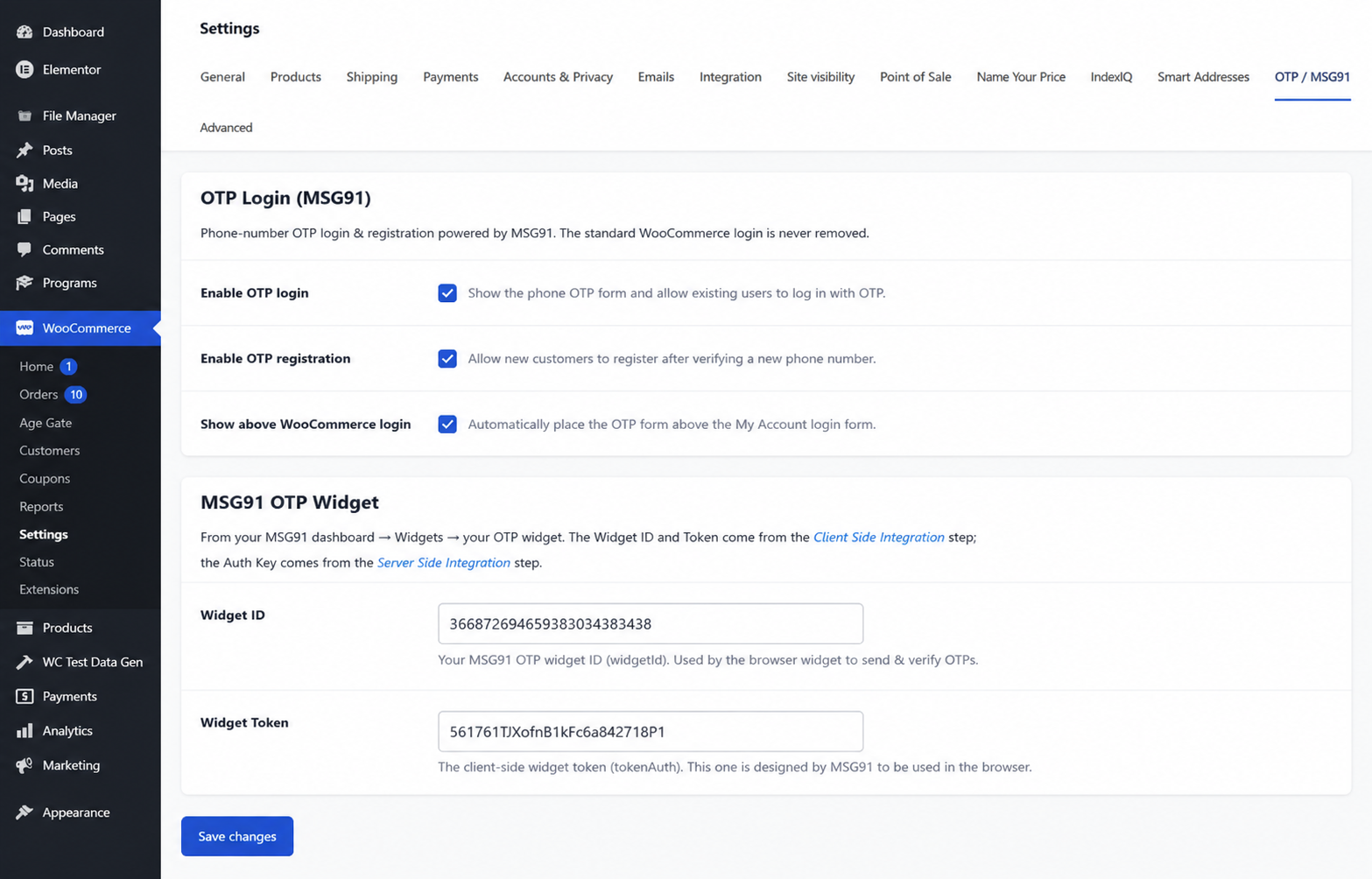
All configuration lives in one place. After activating the plugin, open WooCommerce › Settings › OTP / MSG91. The tab is organised into five clear groups — General, MSG91 OTP Widget, OTP Security, OTP Country, and Form Text — so you can set everything up top to bottom in a couple of minutes.
A status banner at the top of the tab tells you at a glance whether MSG91 is fully configured and OTP login is ready to use, or whether a credential is still missing.
Enable OTP Login & Registration
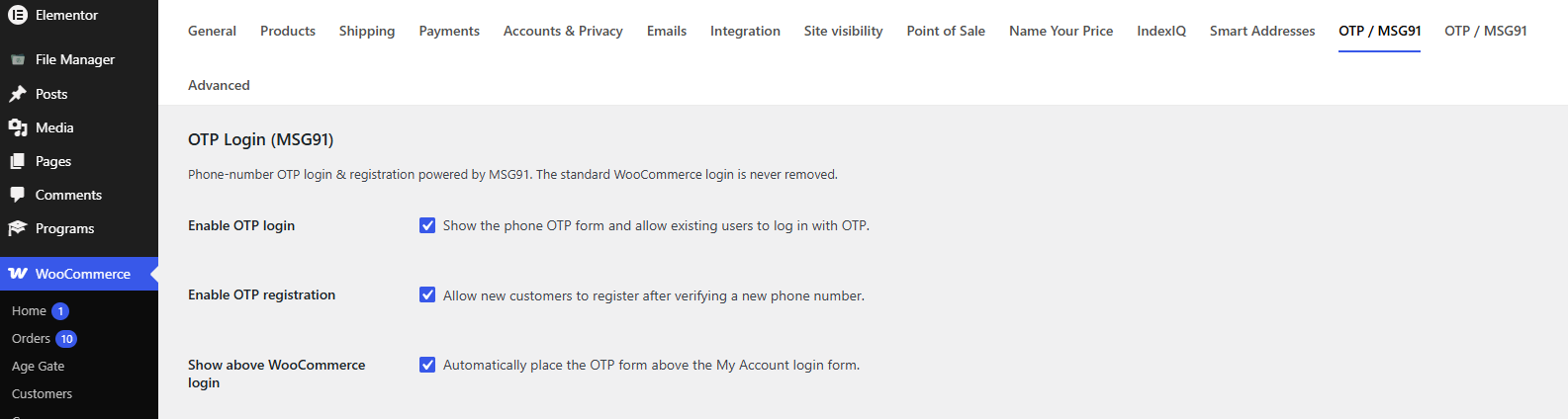
In the General group you decide how the OTP form behaves:
Enable OTP login shows the phone OTP form and lets existing users sign in with an OTP. Enable OTP registration lets new customers create an account after verifying a new phone number. Show above WooCommerce login automatically places the OTP form above the My Account login form, so you don’t need to edit any templates.
Connect MSG91
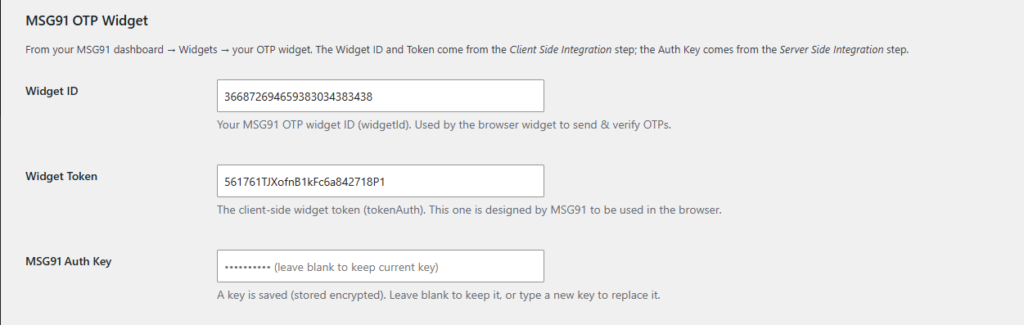
The MSG91 OTP Widget group is where you paste your credentials. All three come from your MSG91 dashboard, under Widgets › your OTP widget. An MSG91 account — sign up free at msg91.com and log in to your panel.
| Field | Where it comes from |
|---|---|
| Widget ID | The Client Side Integration step. Used by the browser widget to send & verify OTPs. |
| Widget Token | The client-side tokenAuth, also from the Client Side Integration step. Safe to use in the browser. |
| MSG91 Auth Key | The Server Side Integration step. Stored encrypted and never sent to the browser. |
OTP Security (WordPress-side)
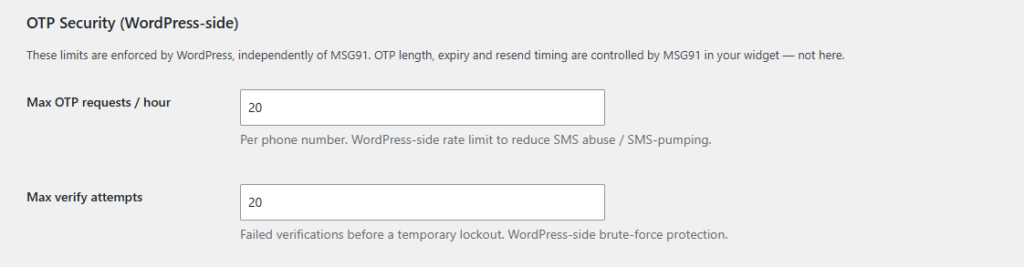
These limits are enforced by WordPress, independently of MSG91, to reduce SMS abuse and brute-force attempts.
| Setting | What it does | Default |
|---|---|---|
| Max OTP requests / hour | Per phone number, to reduce SMS pumping. | 5 (1–50) |
| Max verify attempts | Failed verifications before a temporary lockout. | 5 (1–20) |
OTP length, expiry and resend timing are controlled by MSG91 inside your widget — not here.
OTP Country

Restrict OTP to one country locks the flow to a single country: the frontend selector is fixed to it and any other country is rejected on the server, so the restriction cannot be bypassed from the browser. When restriction is switched off, visitors can pick from the supported countries and international numbers are accepted.
The OTP Country dropdown sets that single allowed country when restriction is on, or the country pre-selected on the form when it is off. It defaults to your WooCommerce store country.
Form Text & Buttons
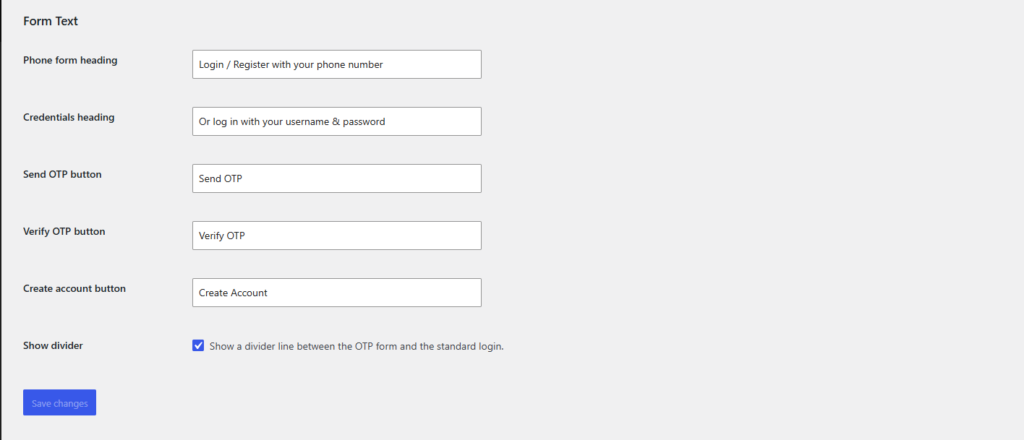
The Form Text group lets you word the form for your store. You can edit the phone form heading, the credentials heading shown above the standard login, and the labels for the Send OTP, Verify OTP and Create Account buttons. A Show divider option draws a subtle line between the OTP form and the standard login.
Frontend Workflow
Displaying the OTP Form
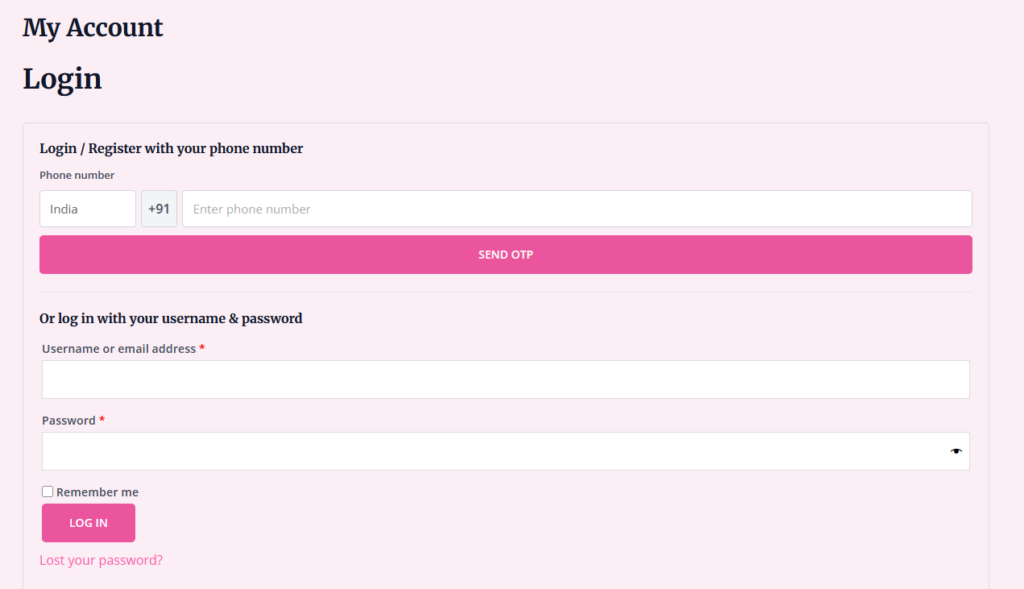
By default, with Show above WooCommerce login enabled, the OTP form appears automatically above the login form on the My Account page — no setup required. Visit that page while logged out to see it.
How the Login Flow Works
- Enter a phone number and press Send OTP. The plugin first runs a WordPress-side gate (rate limit and country check), then the MSG91 widget sends the code.
- Enter the received code and press Verify OTP. The MSG91 widget verifies it in the browser and returns a secure access token.
- The plugin confirms that token with MSG91 on the server and reads the verified mobile number — so the number that is trusted comes from MSG91, never from an unverified browser claim.
- If the number belongs to an existing customer, they are logged straight in and sent to their account. If it’s a new number, they’re asked for an email to finish creating an account.
Frequently Asked Questions
See the list below for our most frequently asked questions about our plugins.
If this doesn’t satisfy your requirement, please reach out to support team.
Q: What does OTP Verification for WooCommerce do?
A: It adds a phone-number OTP login and registration flow to your WooCommerce My Account page using the MSG91 OTP API. Customers can sign in or register by verifying their phone number with a one-time code, while your standard username / password login keeps working exactly as before.
Q: Do I need an MSG91 account?
A: Yes. The plugin sends and verifies OTPs through MSG91’s OTP widget. You’ll need an MSG91 account with an OTP widget set up, then paste your Widget ID, Widget Token and Auth Key into the plugin’s settings.
Q: Does it replace the default WooCommerce login?
A: No. The OTP form is added above the standard login form — the username / email and password login is never removed. Customers can use whichever method they prefer.
Q: Will it create duplicate accounts?
A: No. Phone numbers are normalized and matched against existing customers before anything is created. An existing customer is logged into their current account, and a new number is only registered once, after the email step.
Q: Is my MSG91 Auth Key stored securely?
A: Yes. The server-side Auth Key is stored encrypted in your database and is never sent to the browser. All MSG91 verification calls that use it happen on your server.
Q: Can I restrict OTP login to one country?
A: Yes. Turn on “Restrict OTP to one country” and choose the country. The frontend selector is locked to it and any other country is rejected on the server, so the restriction can’t be bypassed. Leave it off to accept international numbers.
Q: How does the plugin prevent OTP abuse?
A: It adds WordPress-side protection on top of MSG91: a per-phone hourly send limit, a short cooldown between requests, a per-IP guard, a verify-attempt lockout to stop brute-forcing, and nonce-protected AJAX endpoints. The final verification is always confirmed server-side.
Q: Does the plugin support WooCommerce HPOS?
A: Yes. The plugin declares compatibility with WooCommerce High-Performance Order Storage (custom order tables) and works with modern WordPress and WooCommerce versions.
Q: Is the plugin translation ready?
A: Yes. All user-facing text uses the xpcb-otp-verification-for-woocommerce text domain and the bundled /languages folder, so you can translate it with your preferred tools.
Q: What happens to my data if I uninstall?
A: Uninstalling removes the plugin’s options, its request-log table, and its temporary verification tokens. Your customer accounts and their stored phone numbers are left untouched.