

Custom Price Text for Woocommerce
Delight customers and boost conversions with Custom Price Text for WooCommerce – highlight pricing, showcase offers.
Overview
Custom Price Text for WooCommerce allows you to enhance how pricing is displayed on your product pages.
You can add custom text before and after the price to highlight offers and create engaging messages.
It also lets you show or hide the price based on your store’s requirements.
You can include icons like offer badges or payment logos to improve visual appeal and trust.
This feature helps make your pricing more attractive, informative, and conversion-focused.
Key Features
- Text Before Price
Add promotional text like “Today’s Offer” to grab attention. - Text After Price
Display engaging messages such as “Buy with confidence”. - Show / Hide Price Option
Choose whether to display the price or hide it based on your strategy. - Custom Icons Support
Add icons before and after the price (e.g., offer badges, payment logos). - Per-Product Customization
Apply different text and icons for each product individually. - Enhanced Visual Appeal
Make pricing sections more attractive and noticeable. - Conversion Focused
Encourage users to take action with promotional messaging.
Installation
- Download the extension from your WooCommerce dashboard.
- Go to Plugins > Add New > Upload and select the ZIP file you just downloaded.
- Click Install Now, and then Activate.
How It Works ?
- Go to WordPress Dashboard → Products and edit the product you want to customize.
- Enable the Custom Price Text option in the product settings.
- Add your desired text before and after the price to create promotional messaging.
- Choose whether to show or hide the price based on your requirement.
- Optionally, upload icons before or after the price for better visual appeal.
- Save the changes, and the updated price display will appear on the frontend.
Backend Settings
To configure Custom Price Text, go to:
WordPress Dashboard → Products → Edit Product
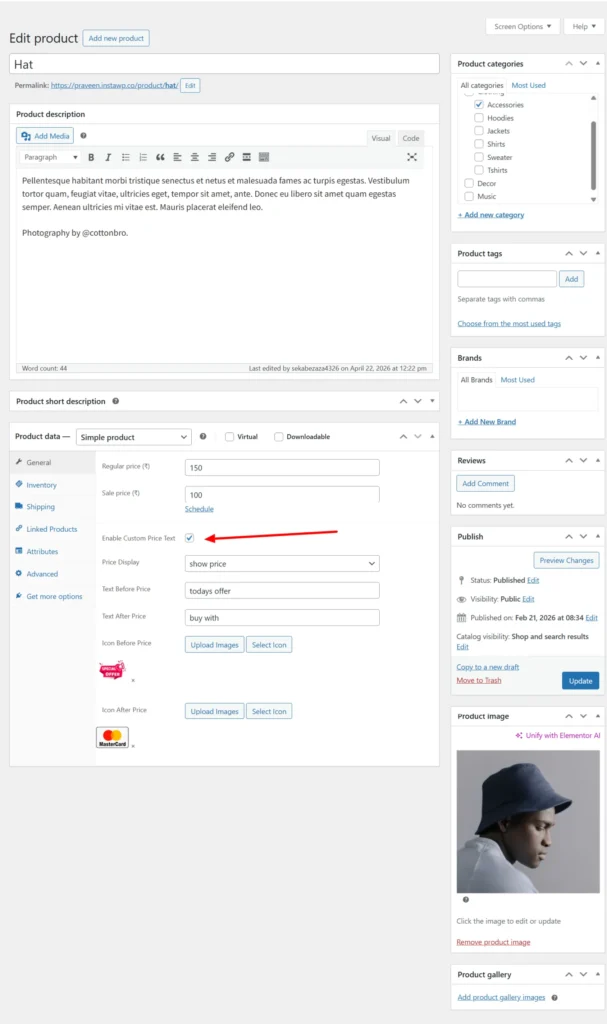
To configure Custom Price Text, go to WordPress Dashboard → Products → Edit Product.
Enable the Custom Price Text option to activate customization for that product.
Under Price Display, you can choose to show or hide the product price.
You can add custom text before the price to highlight offers or promotions.
Similarly, add text after the price to display engaging messages.
You also have the option to add icons before and after the price for better visual appeal.
Once done, click Update to save changes and apply them on the frontend.
Frontend Workflow
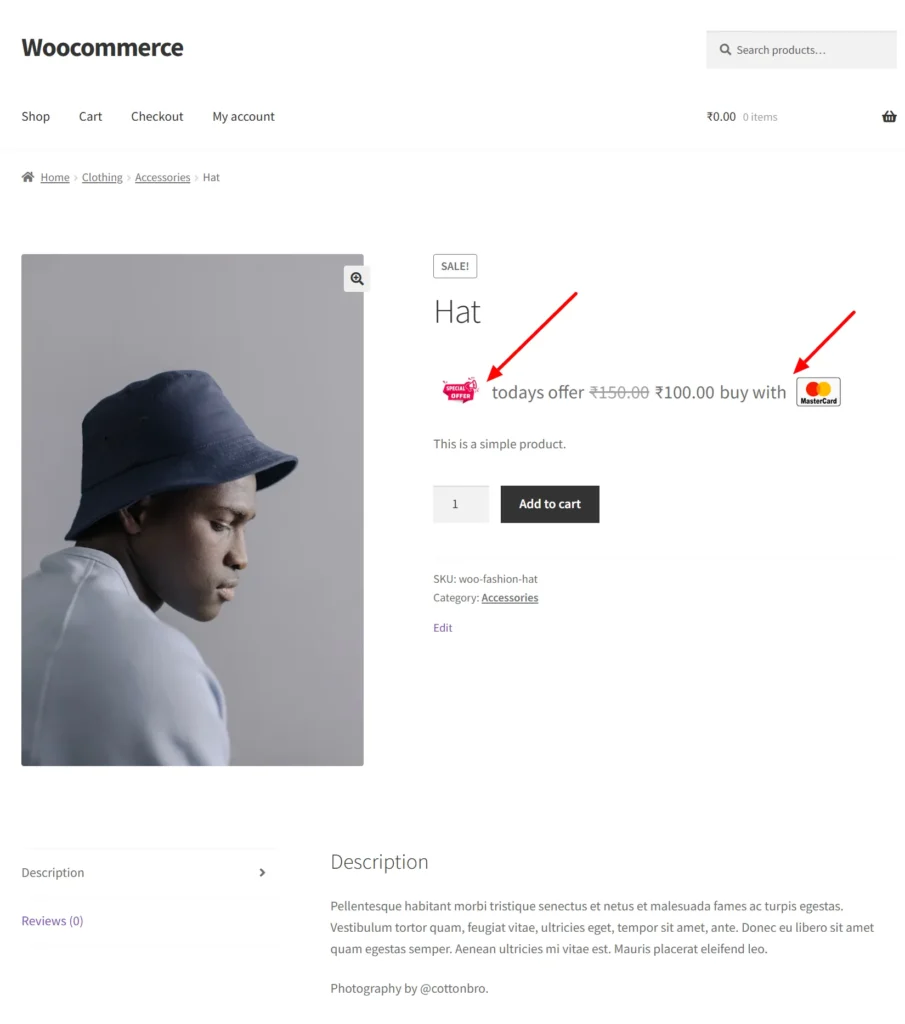
On the product page, customers will see the price displayed with additional custom text.
Text added before the price can highlight offers like “Today’s Offer”.
Text after the price can show messages such as “Buy with confidence”.
Icons displayed before or after the price improve visual appeal and attract attention.
If the price is hidden, customers will only see the custom message instead of the price.
These elements make the pricing section more engaging and informative.
Overall, this enhances the shopping experience and encourages customers to take action.
Frequently Asked Questions
See the list below for our most frequently asked questions about our plugins.
If this doesn’t satisfy your requirement, please reach out to support team.
Q: What is a Custom Price Text plugin for WooCommerce?
A: A Custom Price Text plugin for WooCommerce allows store owners to add custom messages before or after product prices to improve clarity and highlight offers.
Q: Can I add text before and after the product price in WooCommerce?
A: Yes, you can easily display text like “Starting from”, “Only”, or “Per item” before or after product prices.
Q: Can I replace the price with custom text like “Contact for Price”?
A: Yes, the plugin allows you to completely replace the product price with custom text such as “Contact for Price” or “Request a Quote”.
Q: Can I show custom price text for specific products or categories?
A: Yes, you can apply custom price text to selected products, categories, or groups for targeted messaging.
Q: Does the plugin support variable products?
A: Yes, it works with both simple and variable products, allowing flexible pricing display for all product types.
Q: Can I display icons or badges along with price text?
A: Yes, you can enhance price display by adding icons or badges to highlight offers, discounts, or important information.
Q: Can I customize the style of the price text?
A: Yes, you can change the color, font size, and style of the price text to match your store design.
Q: Where will the custom price text be displayed?
A: Custom price text can be shown on shop pages, product pages, or both, depending on your settings.
Q: How does custom price text help increase sales?
A: It improves product clarity, highlights promotions, and creates urgency, which can lead to higher conversions.
Q: Do I need coding skills to use this plugin?
A: No, the plugin is beginner-friendly and can be configured directly from the WooCommerce dashboard without coding.