

Countdown Timer for WooCommerce - User Guide
This guide explains how to install, configure, and use the Countdown Timer for WooCommerce plugin.
Overview
Countdown Timer for WooCommerce is a powerful and easy-to-use plugin that helps create urgency and boost conversions by displaying attractive countdown timers for your WooCommerce products. Whether you’re running flash sales, seasonal promotions, limited-time offers, or product launches, this plugin gives you complete control over how and where countdown timers appear.
Key Features
- Display countdown timers on WooCommerce products.
- Create urgency to increase conversions and sales.
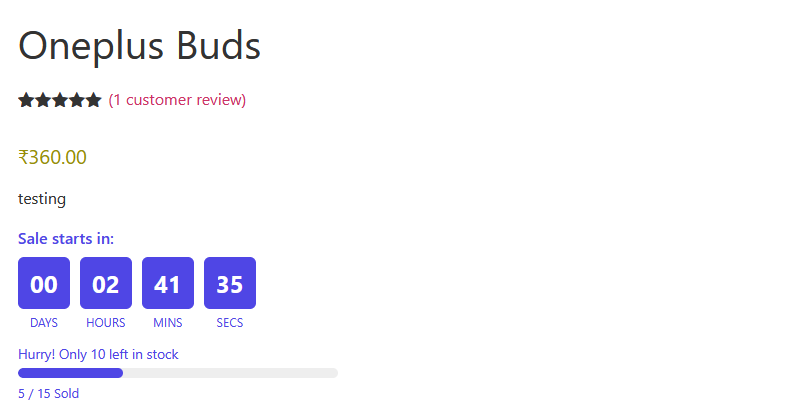
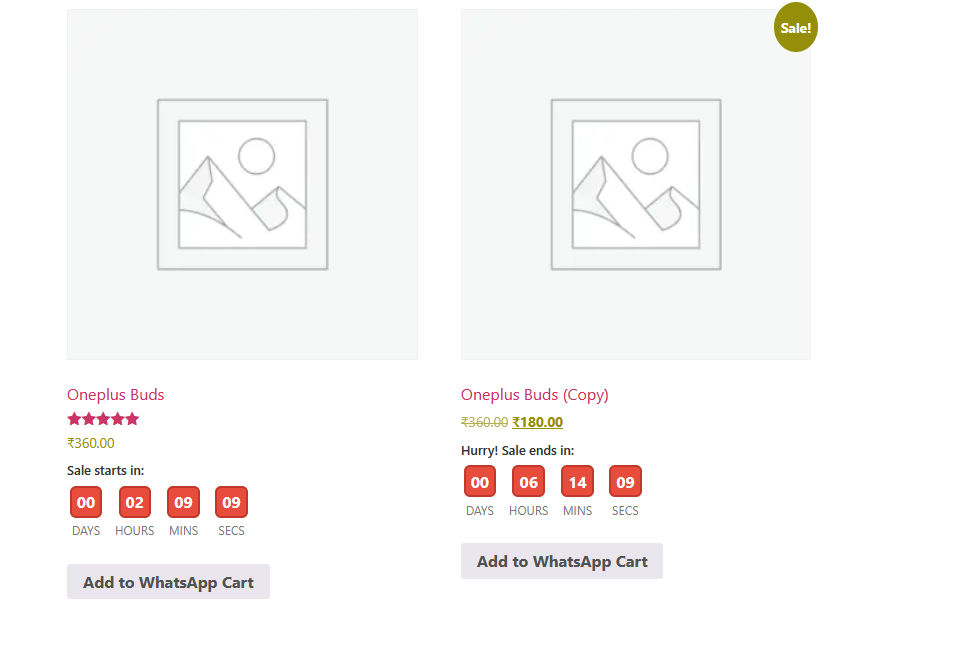
- Shows “Sale starts in” before the sale begins.
- Automatically switches to “Hurry! Sale ends in” when the sale is active.
- Countdown updates in real time.
- Selectable hook positions.
- Custom stock message
- Custom sold message
- Progress bar
- Optional WooCommerce sales count
Installation
- Upload the plugin ZIP or folder via Plugins > Add New > Upload Plugin.
- Activate the plugin.
- Ensure WooCommerce is installed and activated.
Global Settings
General
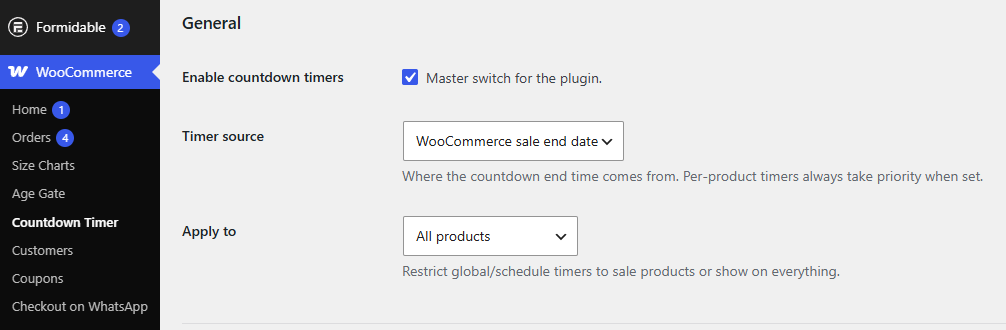
- Go to WooCommerce > Countdown Timer.
- Enable/disable the plugin.
- Choose Timer Source: WooCommerce Sale Schedule, Fixed Global Date, or Per Product.
- Configure global start/end dates if using a global campaign.
- Choose whether the timer appears on sale products only or all products.
Placement
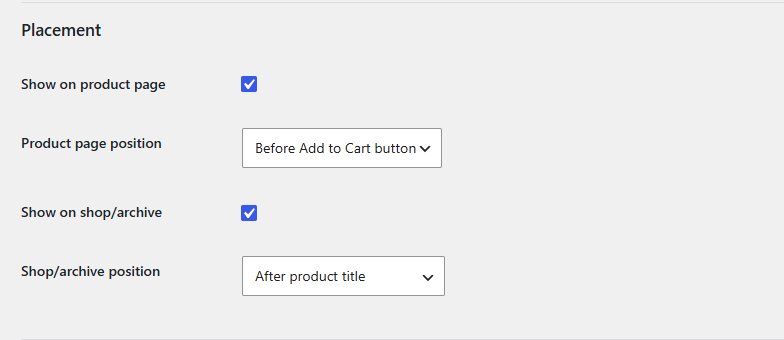
- Enable display on Single Product pages.
- Select the hook position.
- Enable display on Shop/Archive pages and choose the loop position.
Behaviour on expiry
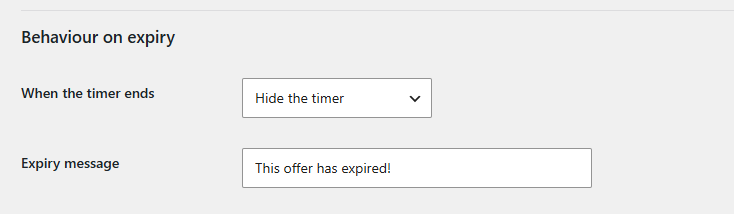
Choose what happens when the countdown expires: Hide timer, Keep timer at zero, or Show a custom expiry message.
Content & labels
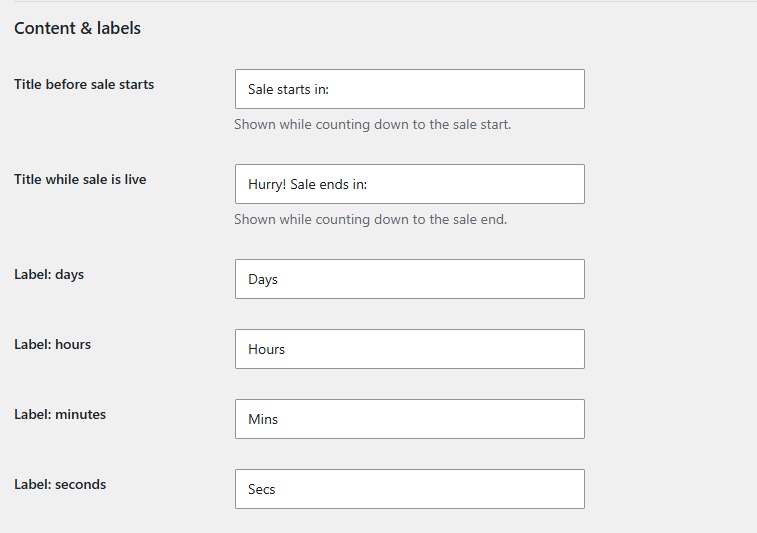
- Customize the text shown before the sale starts and while the sale is active.
- Customize labels for Days, Hours, Minutes, and Seconds.
Appearance
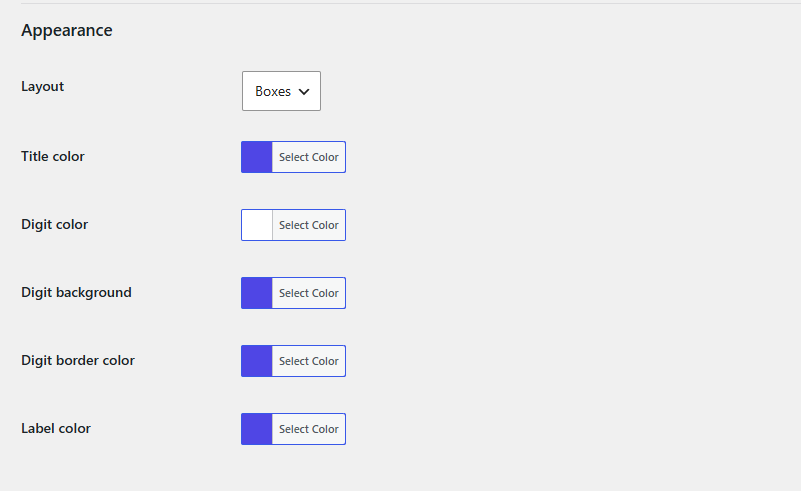
- Choose one of three layouts: Boxes, Plain, or Circles.
- Customize title, digit, background, border, label, and stock bar colours.
Stock scarcity bar
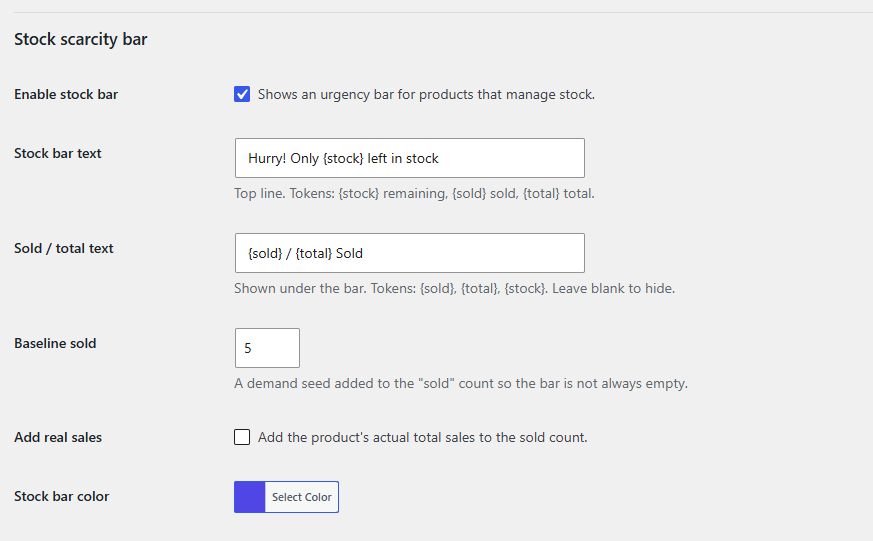
- Enable the stock scarcity bar.
- Customize stock and sold text using placeholders: {stock}, {sold}, {total}.
- Optionally include WooCommerce total sales in the sold count.
Product Category Override
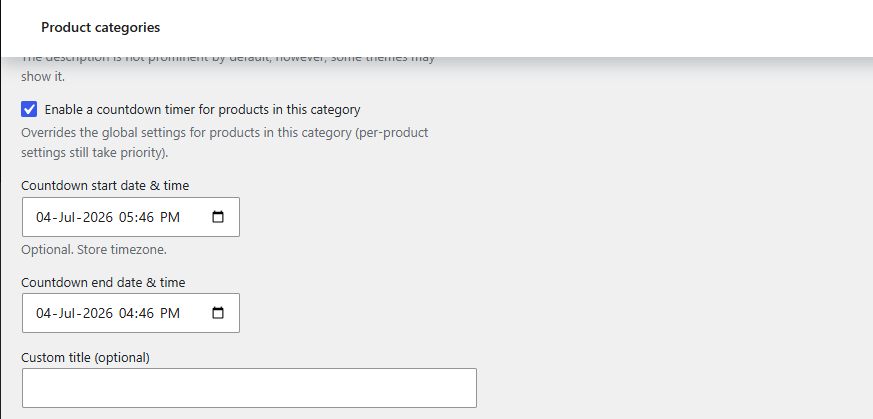
- Edit a Product Category to configure category-specific countdown settings.
- Category settings override global settings.
Product Override
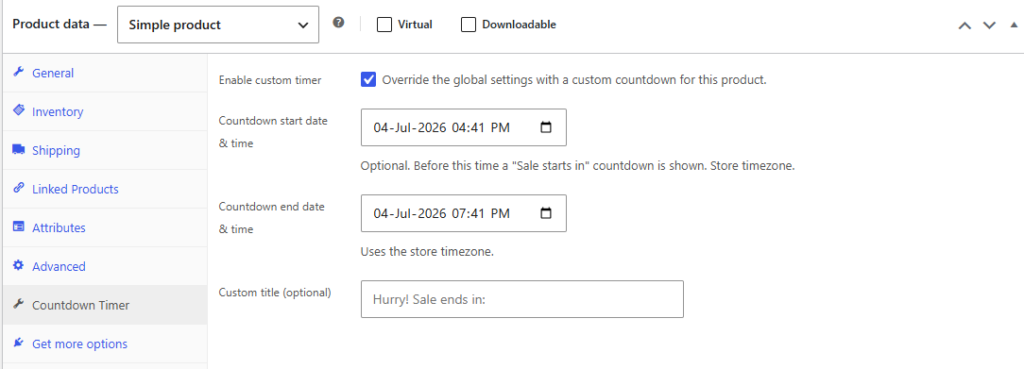
- Open a product and use the “Countdown Timer” tab.
- Configure a custom timer for that product.
- Product settings override both category and global settings.
- Product Settings > Category Settings > Global Settings
Frontend
Product Page
Shop / Archieve Page
Frequently Asked Questions
See the list below for our most frequently asked questions about our plugins.
If this doesn’t satisfy your requirement, please reach out to support team.
Q: How do I enable the countdown timer for my products?
A: After installing and activating the plugin, navigate to Countdown Timer > General Settings to configure the global countdown timer. You can also enable and customize countdown timers for individual products or product categories.
Q: Can I set different countdown timers for individual products?
A: Yes. The plugin allows you to configure a unique countdown timer for each product. Simply enable Product-Level Configuration and set custom start and end dates. Product-level settings always override category and global settings.
Q: Does the plugin support WooCommerce sale schedules?
A: Yes. The plugin integrates with WooCommerce Sale Price Dates and can automatically display countdowns based on your scheduled sale start and end dates.
Q: Can I display countdown timers on shop and category pages?
A: Yes. You can choose to display countdown timers on single product pages, shop pages, product category archives, and other WooCommerce listing pages from the plugin settings.
Q: Can I customize the appearance of the countdown timer?
A: Absolutely. You can customize the timer layout, colors, labels, borders, and countdown messages to match your store’s branding and design.
Q: What happens when the countdown expires?
A: You can configure the plugin to display an expiration message or automatically hide the countdown timer after the promotion ends, depending on your preferred settings
Q: Does the plugin work with Elementor and other page builders?
A: Yes. The plugin includes shortcode support, allowing you to place countdown timers anywhere on your website, including Elementor, Gutenberg, widgets, and custom pages.
Q: Why isn't the countdown timer showing on my product?
A: Please verify that the countdown timer is enabled, the configured dates are valid, and the product meets the display conditions. If Product-Level Configuration is enabled, those settings will take priority over category and global settings.
Q: Does the countdown timer appear for out-of-stock products?
A: No. By default, the plugin does not display the countdown timer or stock scarcity bar for out-of-stock products, ensuring customers only see active promotions for available items.
Q: Is the plugin compatible with the latest versions of WooCommerce?
A: Yes. The plugin is designed to work with modern WooCommerce versions and supports High-Performance Order Storage (HPOS), making it suitable for current and future WooCommerce stores.