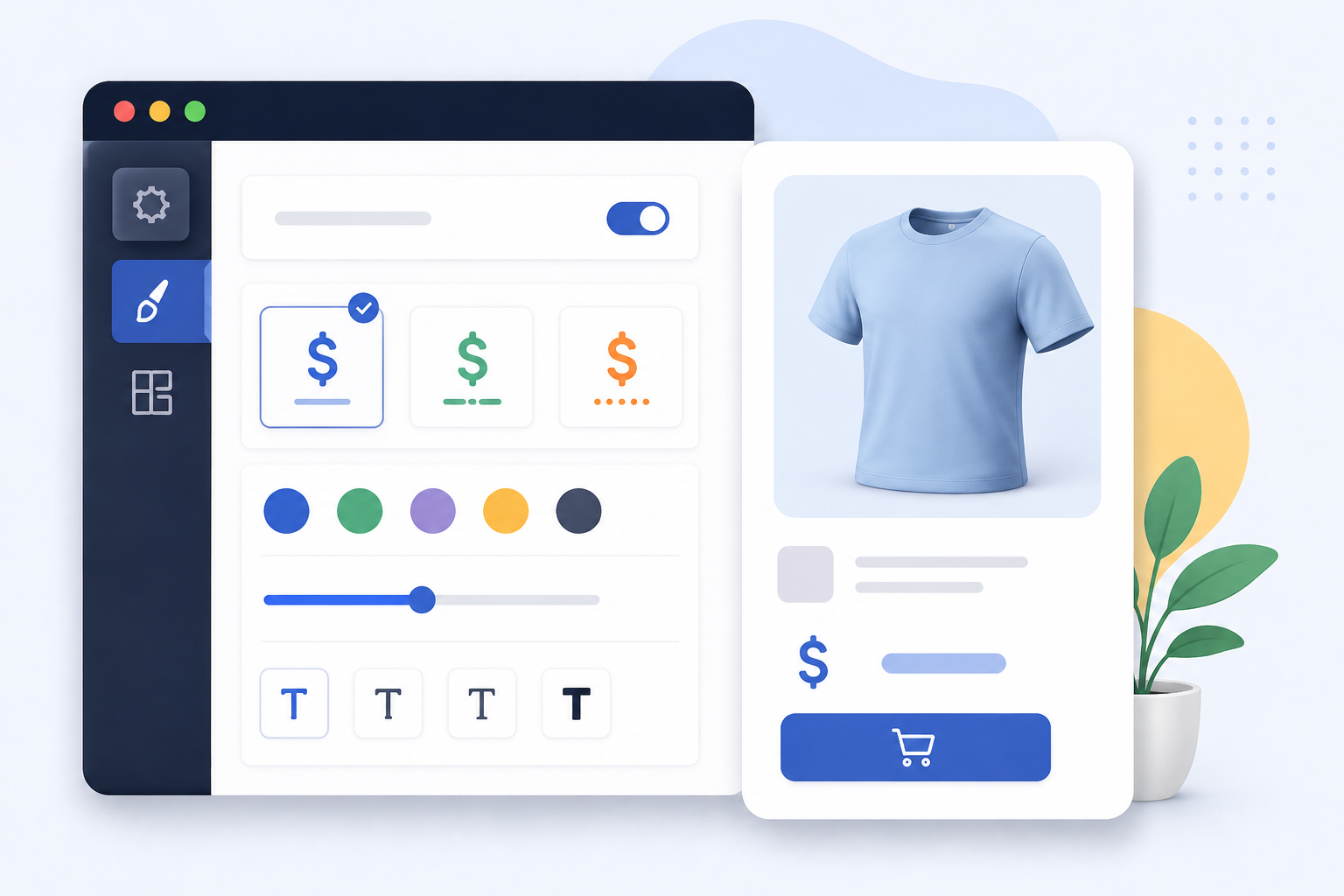
If you run a WooCommerce store, you’ve probably faced this limitation:
You can set prices but you can’t fully control how they’re displayed.
What if you want to show:
- “Starting from ₹999”
- “Contact for Price”
- “Free Trial Available”
- “Price on Request”
By default, WooCommerce doesn’t give you that flexibility.
And that’s a problem because how you display price directly impacts conversions.
In this guide, you’ll learn:
- Why price display matters more than you think
- Different ways to customize WooCommerce price text
- Limitations of default WooCommerce
- And the easiest way to fully control pricing display
Why Price Display Matters in WooCommerce
Most store owners focus on pricing strategy but ignore price presentation.
That’s a mistake.
Because customers don’t just evaluate price…
They react to how it’s shown.
Here’s what better price display can do:
- Increase perceived value
- Reduce hesitation
- Improve click-through rate
- Encourage inquiries (for high-ticket products)
For example:
❌ ₹10,000
✅ “Starting from ₹10,000”
✅ “Premium Package – ₹10,000”
✅ “From ₹10,000/month”
Same price completely different perception.
Common Use Cases for Custom Price Text
Let’s look at real scenarios where default WooCommerce fails.
- Variable Products
You may want to show:
“Starting from ₹X” instead of a price range
- Out-of-Stock or Hidden Prices
Sometimes you want:
“Contact for Price” instead of showing ₹0
- Service-Based Products
For services, fixed pricing doesn’t work: “Get a Quote” or “Custom Pricing Available”
- Subscription or Installment Models
“₹999/month” instead of total price
Limitations of Default WooCommerce
WooCommerce is powerful but price display customization is limited.
Out of the box, you can:
- Set regular and sale price
- Show price range for variations
But you cannot easily:
- Replace price text globally
- Add prefixes/suffixes dynamically
- Show custom messages based on conditions
- Control price display without coding
So what do most store owners do?
❌ Edit theme files
❌ Add custom PHP snippets
❌ Use multiple plugins
This often leads to:
- Broken layouts
- Compatibility issues
- Maintenance headaches
The Smart Way to Customize Price Display
Instead of hacking code, a better approach is to use a dedicated solution like:
Custom Price Text for WooCommerce
This allows you to fully control how prices appear across your store — without touching code.
What You Can Do with Custom Price Text
Here’s where things get powerful.
- “Call for Price”
- “Free”
- “Limited Offer”
- “Starting from ₹”
- “Only ₹”
- “/month”
- Product type
- Category
- User role
- Stock status
Frequently asked questions
Q: Can I change the price text in WooCommerce without coding?
A: Yes, you can customize price text without writing any code by using a plugin like Custom Price Text for WooCommerce. It allows you to replace, hide, or modify price labels directly from the dashboard.
Q: How do I show “Starting from” instead of a price range in WooCommerce?
A: Yes, you can hide product prices completely. This is useful for:
- B2B or wholesale stores
- Quote-based products
- Restricted pricing for logged-in users
Plugins like Custom Price Text for WooCommerce allow you to replace prices with text like “Login to view price” or “Contact for price.”
Q: Can I show different price text for different products?
A: Yes, you can apply custom price text based on conditions such as:
- Specific products
- Categories
- Product types (simple, variable)
- User roles
This gives you full control over how pricing appears across your store.
Q: Will changing price text affect WooCommerce functionality?
A: No, customizing the price display only changes how the price is shown to users. It does not affect:
- Actual product pricing
- Cart calculations
- Checkout process
Q: Can I add text before or after the price in WooCommerce?
A: Yes, you can add prefixes or suffixes like:
- “Only ₹999”
- “₹999 per month”
- “Starting from ₹999”
This helps improve clarity and marketing impact.