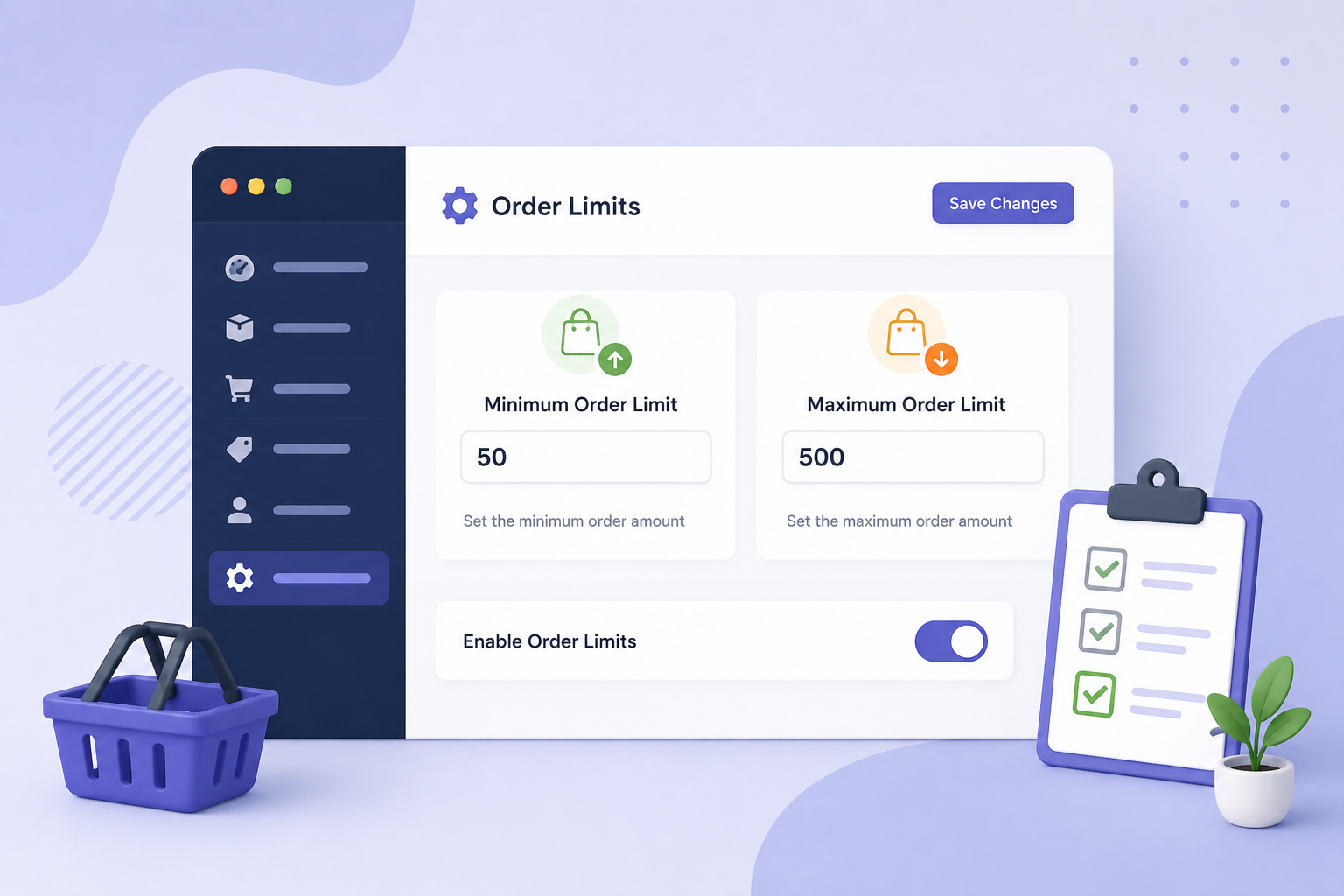
Managing orders in WooCommerce isn’t just about selling more — it’s about selling efficiently and profitably.
If you’ve ever faced issues like:
- Customers placing very small orders (low profit)
- Bulk buyers ordering beyond your capacity
- Shipping costs eating into margins
Then you need order limits.
By default, WooCommerce does not give you full control over:
- Minimum order amount
- Maximum order quantity
- Cart restrictions
In this guide, you’ll learn how to set minimum and maximum order limits in WooCommerce to optimize your store operations and increase profitability.
Why Order Limits Are Important
Without restrictions, your store may face:
Low-Value Orders
Customers placing ₹50–₹100 orders → not profitable after shipping.
Overstock or Bulk Abuse
One customer ordering too much → stock issues.
Operational Inefficiency
Too many small or irregular orders increase:
- Packing time
- Shipping costs
- Processing workload
What Are Order Limits in WooCommerce?
Order limits allow you to control:
- Minimum cart value (e.g., ₹500 minimum order)
- Maximum cart value (e.g., ₹10,000 cap)
- Minimum quantity per product
- Maximum quantity per order
This helps create a balanced and controlled sales process.
Default WooCommerce Limitation
WooCommerce does not natively support:
- Minimum order total rules
- Maximum quantity restrictions
- Advanced cart conditions
To implement these, store owners often:
❌ Add custom code
❌ Use complex workarounds
❌ Face compatibility issues
The Easy Solution: Min and Max Order total, quantity for WooCommerce
Instead of custom coding, you can use:
Min and Max Order total, quantity for WooCommerce
This plugin allows you to:
- Set flexible order rules
- Control cart behavior
- Improve store profitability
What You Can Control
✅ Minimum Order Value
Example:
👉 Customers must spend at least ₹500 to checkout
✅ Maximum Order Value
Example:
👉 Limit orders to ₹10,000
✅ Product Quantity Limits
Example:
- Minimum: 2 items
- Maximum: 10 items
✅ Category-Based Rules
Apply limits to:
- Specific product categories
- Selected products
Step-by-Step: Set Order Limits
Step 1: Install the Plugin
Install Min and Max Order total, quantity for WooCommerce from your dashboard.
Step 2: Configure Global Rules
Set:
- Minimum cart value
- Maximum cart value
Step 3: Add Product-Level Rules
Define:
- Minimum quantity
- Maximum quantity
Step 4: Apply Category Rules (Optional)
Limit orders for specific categories.
Step 5: Test Checkout
Verify:
- Error messages show correctly
- Restrictions apply as expected
Best Practices for Setting Order Limits
1. Set a Reasonable Minimum
Too high → customers leave
Too low → low profit
Find a balance
2. Use Clear Error Messages
Example:
“Minimum order amount is ₹500”
3. Consider Shipping Costs
Ensure minimum order covers:
- Packaging
- Delivery
- Profit margin
4. Avoid Over-Restricting
Too many rules = poor UX
Real Use Cases
🛒 Small Stores
Set ₹300–₹500 minimum to stay profitable
📦 Wholesale Stores
Set bulk quantity limits
🍔 Food Delivery
Minimum order for delivery
🏬 Inventory Control
Prevent stock over-purchase
Benefits for Store Owners
💰 Increase Profit Margins
Avoid low-value orders
⚙️ Improve Operations
Better order consistency
📈 Boost Efficiency
Reduce unnecessary workload
😊 Better Customer Clarity
Clear rules = fewer issues
When Should You Use Order Limits?
Use this plugin if you:
- Want to avoid low-value orders
- Need inventory control
- Run a wholesale or bulk store
- Want better checkout control
- Need structured order rules
Frequently asked questions
Q: Can WooCommerce set minimum order value by default?
A: No, WooCommerce doesn’t support this natively. You need a plugin.
Q: Can I limit product quantity per order?
A: Yes, you can set minimum and maximum quantity rules.
Q: Will customers see an error message?
A: Yes, clear messages guide users when limits are not met.
Q: Can I apply rules to specific categories?
A: Yes, category-based restrictions are supported.
Q: Does this help improve profit?
A: Yes, it prevents low-value orders and optimizes sales.