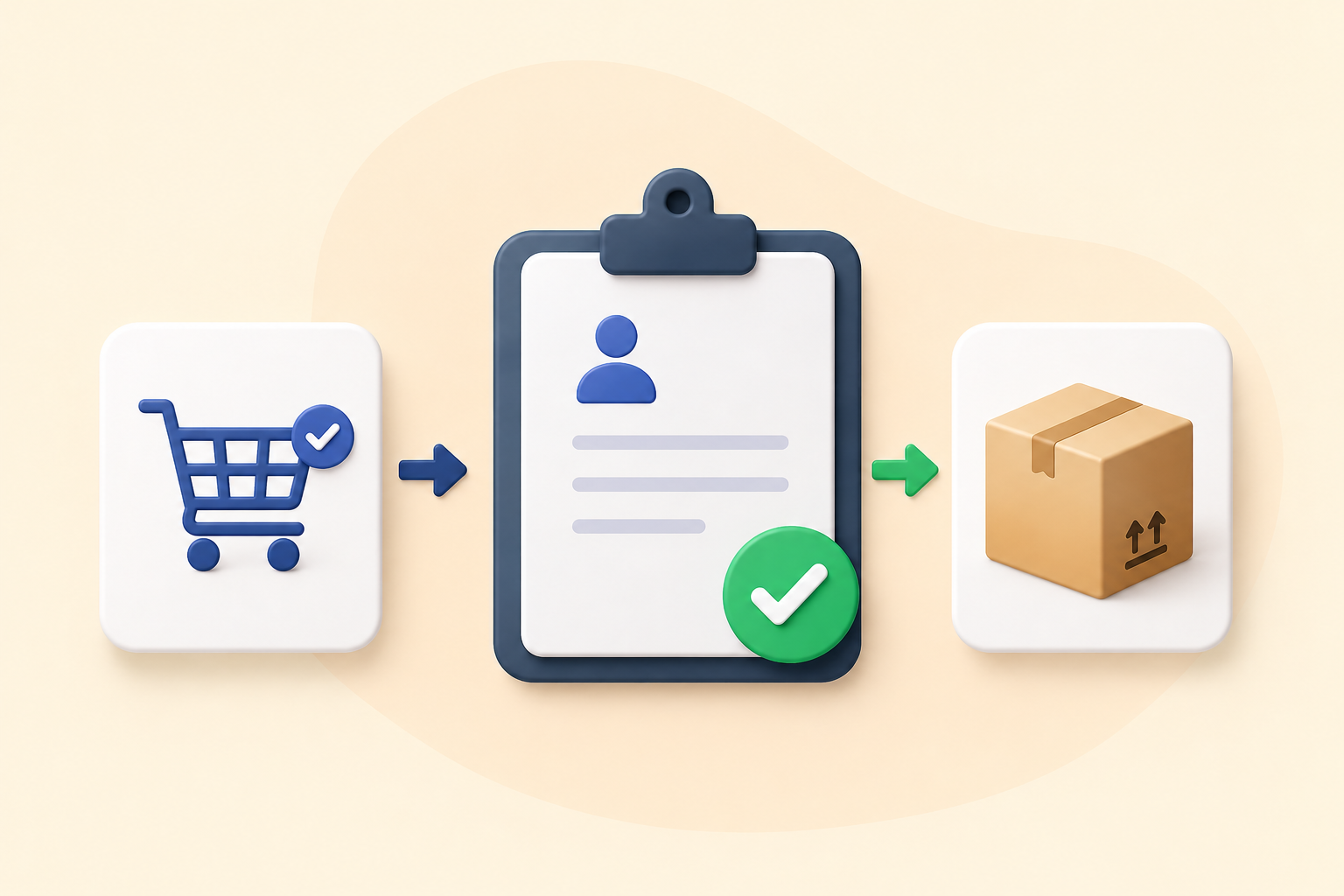
Not every order in your WooCommerce store should be processed instantly.
In many cases, you may want to:
- Review orders before accepting them
- Approve high-value purchases
- Validate wholesale or B2B customers
- Prevent fraudulent or suspicious orders
But here’s the issue:
WooCommerce automatically processes orders once placed.
There’s no built-in way to approve or reject orders before processing.
In this guide, you’ll learn how to add an order approval workflow in WooCommerce and gain full control over your orders.
Why Order Approval Is Important
Order approval is essential for stores that need control and validation before fulfilling orders.
Common scenarios:
🏬 Wholesale Stores
- Verify bulk buyers before confirming orders
💰 High-Value Orders
- Review expensive purchases before processing
🧾 Custom Orders
- Confirm details before accepting
🔐 Fraud Prevention
- Stop suspicious or fake orders
Problems Without Order Approval
Automatic Processing
Orders go through without validation
Risk of Fraud
Fake or risky orders get processed
Operational Mistakes
Incorrect orders get fulfilled
No Control
Store owners cannot review before acceptance
Default WooCommerce Limitation
WooCommerce:
- Automatically creates and processes orders
- Doesn’t include approval/rejection system
- Lacks manual validation workflow
You need a plugin to add this control.
The Solution: Order Approval for WooCommerce
Using:
Order Approval for WooCommerce
You can:
- Approve or reject orders manually
- Hold orders before processing
- Create a controlled order workflow
Key Features
✅ Manual Order Approval
Review orders before confirming
✅ Reject Orders
Decline invalid or suspicious orders
✅ Pending Approval Status
Orders stay on hold until approved
✅ Admin Control
Full visibility and decision-making power
✅ Custom Workflow
Define how orders move through your system
Step-by-Step Setup
Step 1: Install the Plugin
Install Order Approval for WooCommerce
Step 2: Enable Approval Workflow
Set orders to:
👉 “Pending Approval”
Step 3: Configure Rules
Decide:
- Which orders need approval
- Conditions (optional)
Step 4: Manage Orders
From admin panel:
- Approve
- Reject
- Review details
Step 5: Test Workflow
Place test orders and verify:
- Approval flow works
- Status updates correctly
Best Practices
1. Use for High-Risk Orders
Avoid applying to all orders unnecessarily
2. Keep Approval Fast
Don’t delay customer experience
3. Notify Customers
Let them know order is under review
4. Combine with Payment Checks
Improve fraud prevention
Real Use Cases
🏬 Wholesale Stores
Approve bulk buyers before processing
💰 High-Value Products
Review expensive orders
🧾 Custom Orders
Validate order details before confirmation
🔐 Fraud Prevention
Stop suspicious transactions
Benefits for Store Owners
🔒 Better Control
💰 Reduced Risk
⚙️ Improved Workflow
😊 Better Decision Making
Frequently asked questions
Q: Does WooCommerce support order approval by default?
A :No, it processes orders automatically.
Q: Can I approve or reject orders manually?
A: Yes, using this plugin.
Q: Will customers be notified?
A: Yes, depending on your setup.
Q: Can I apply approval only to certain orders?
Q: Is this useful for B2B stores?
A: Yes, it’s highly recommended.