

Woo Optimise for WooCommerce - User Guide
This guide explains how to install, configure, and use the Woo Optimise for WooCommerce plugin.
Overview
Woo Optimise for WooCommerce helps you keep your WooCommerce store clean, fast, and organized by safely removing unnecessary data.
Key Features
- One-Click WooCommerce Database Optimization
- Product Cleanup Tools
- Order Cleanup Tools
- Customer Cleanup Tools
- Coupon Cleanup
- Scheduled Action Cleanup
- WooCommerce Cache & Session Cleanup
- Preview Before Delete
- Smart Retention Rules
- Fast SQL Cleanup
- WordPress Cleanup
- Automation & Scheduled Cleanup
- Cleanup Logs
- Easy Settings
- Full WooCommerce HPOS Support
- Improve Store Performance
- Safe Cleanup Process
- Modern WordPress & WooCommerce Compatible
Installation
- Upload the plugin ZIP or folder via Plugins > Add New > Upload Plugin.
- Activate the plugin.
- Ensure WooCommerce is installed and activated.
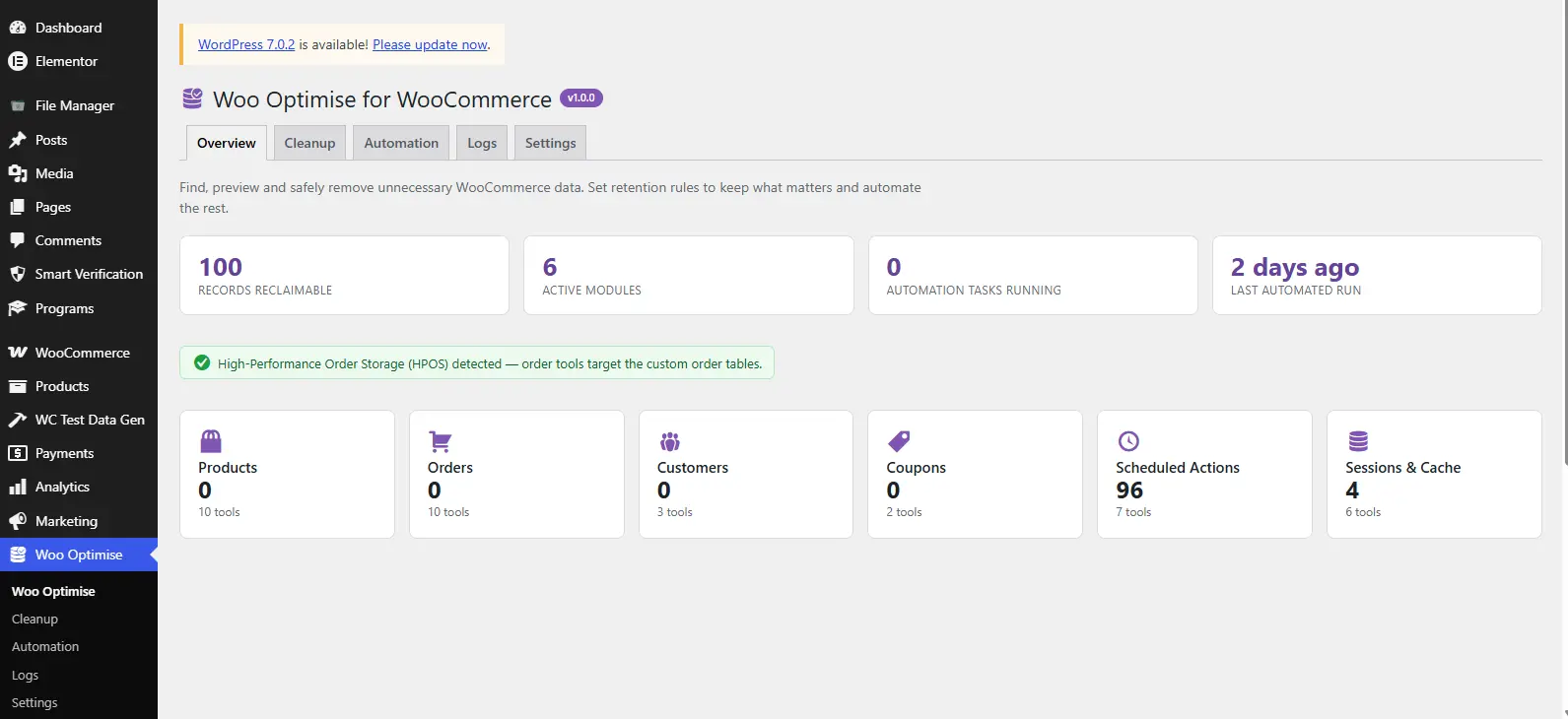
- After activating the plugin, navigate to Woo Optimise from your WordPress dashboard.
- The Overview page gives you a quick snapshot of your store’s optimization status.
- Here you’ll see important information such as reclaimable records, active cleanup modules, scheduled automation tasks, the last cleanup time, and whether WooCommerce High-Performance Order Storage, or HPOS, is enabled.
- This dashboard provides everything you need at a glance before performing any cleanup.
Products Cleanup
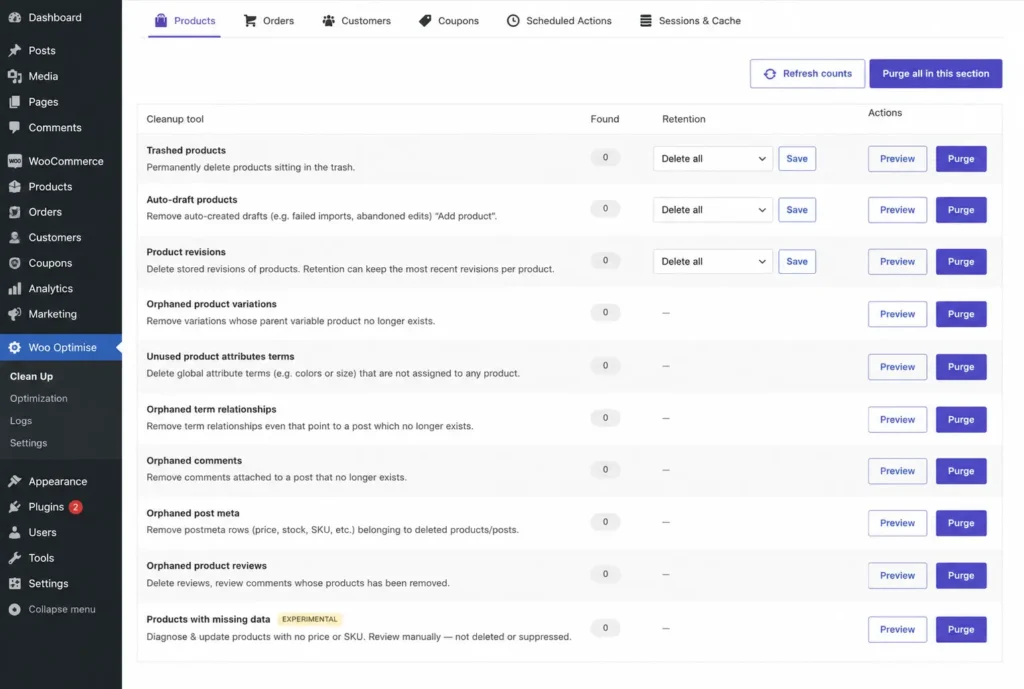
- Let’s begin with the Products cleanup module.
- This section helps remove unnecessary product-related data that accumulates over time.
- You can clean trashed products, auto drafts, product revisions, orphaned product variations, unused attribute terms, orphaned metadata, reviews, comments, and more.
- Before deleting anything, simply click Preview to review all matching records.
- Once you’re satisfied, configure your retention settings if needed and safely perform the cleanup.
Orders Cleanup
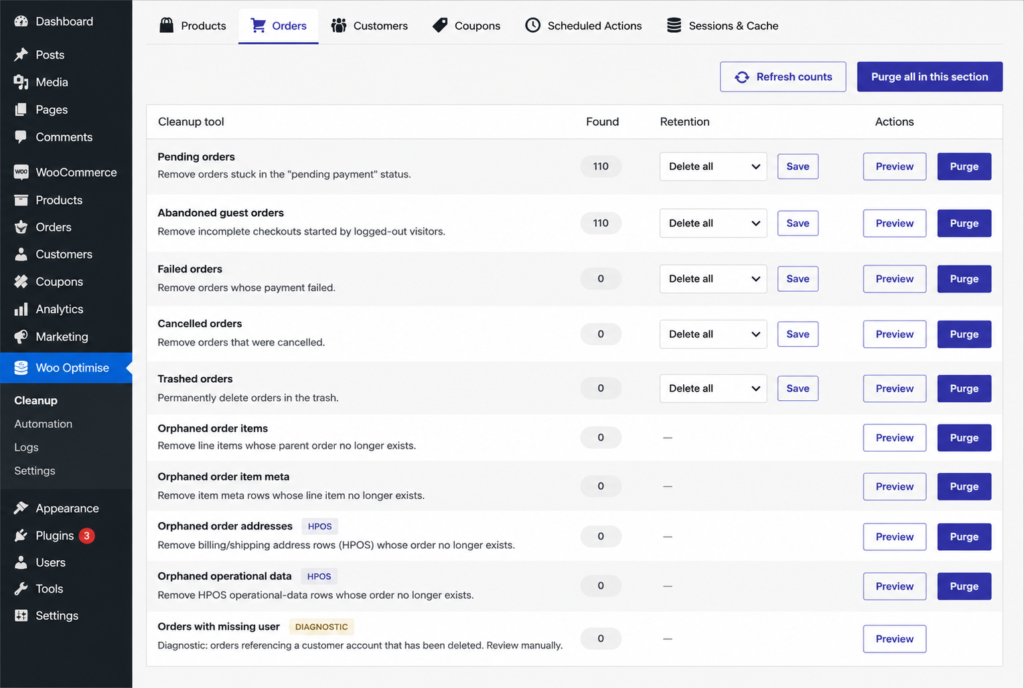
- Next is the Orders cleanup module.
- WooCommerce stores often collect thousands of outdated orders over time.
- Here you can clean pending, failed, cancelled, trashed, and guest abandoned orders.
- The plugin also detects orphaned order items, item metadata, HPOS addresses, and operational records.
- As always, preview the records before deleting to ensure you’re removing only the data you no longer need.
Customers Cleanup
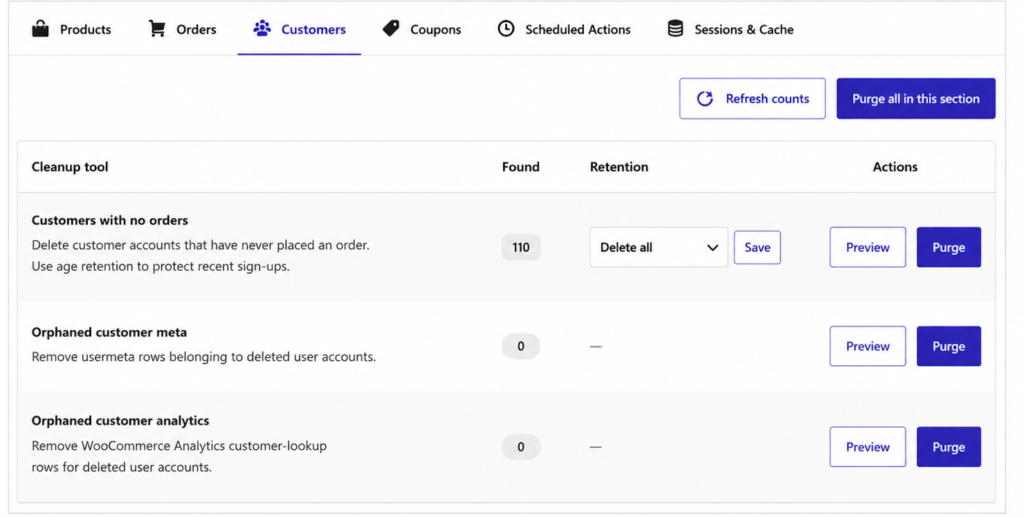
- The Customers module helps keep your customer database organized.
- You can identify customers who have never placed an order, remove orphaned customer metadata, clean analytics records, and diagnose inactive customer accounts.
- This helps maintain a cleaner database without affecting active customers.
Coupons Cleanup
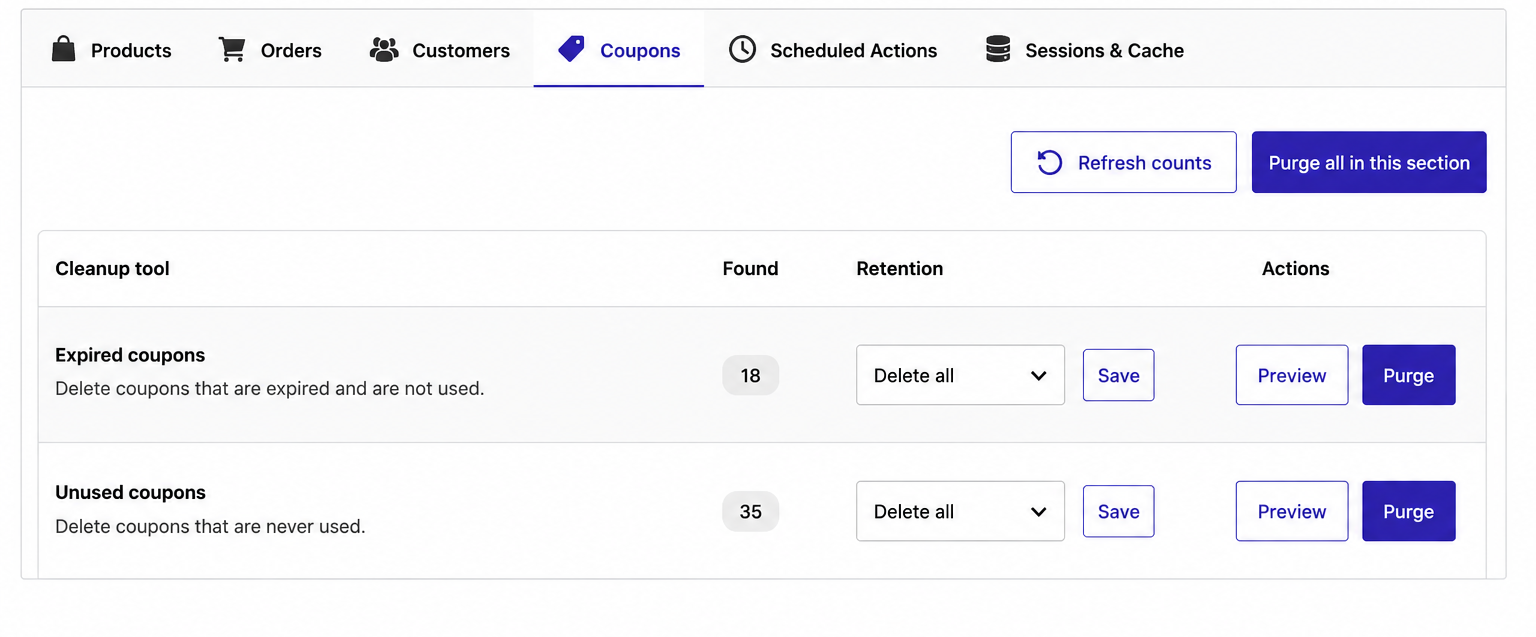
- The Coupons section makes it easy to remove expired or unused coupons.
- Instead of manually searching through hundreds of promotional codes, simply preview the results and clean them with a few clicks.
Scheduled Actions Cleanup
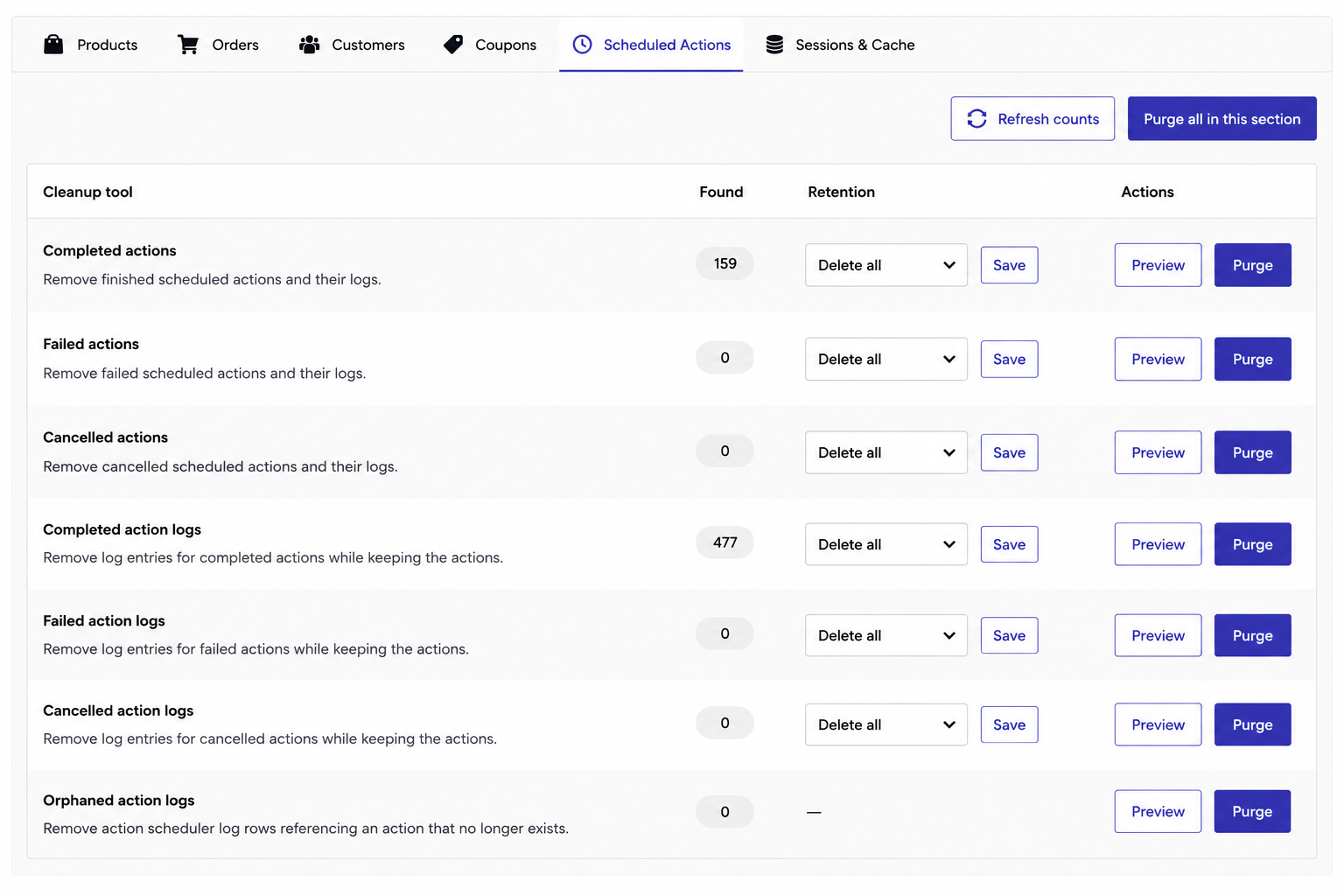
- WooCommerce relies on Action Scheduler to process background tasks.
- Over time, completed and failed actions can grow into thousands of records.
- Woo Optimise allows you to safely remove completed actions, failed actions, cancelled actions, logs, and orphaned records.
- Regular cleanup helps keep your database lightweight and efficient.
Sessions & Cache Cleanup
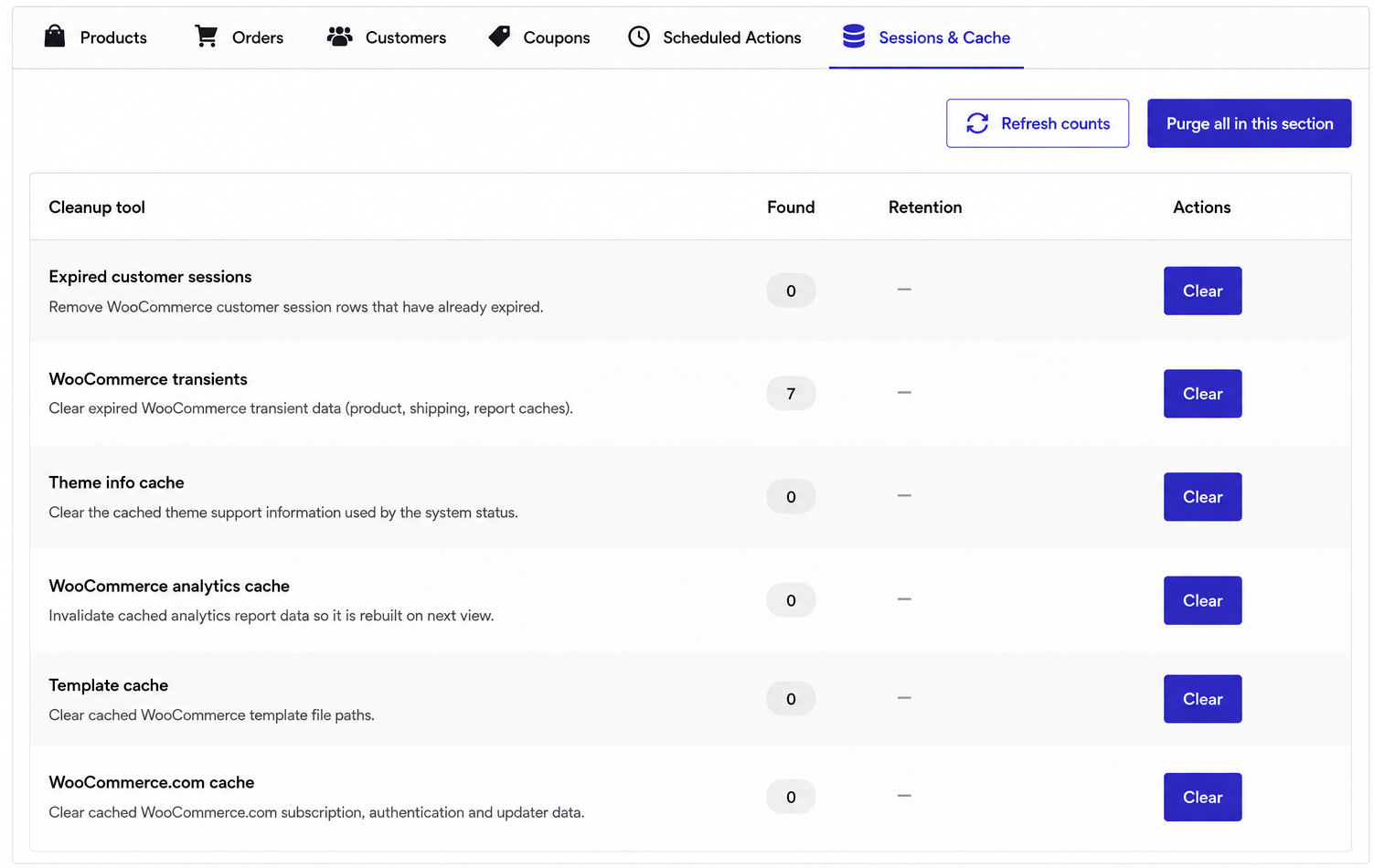
- Temporary data also takes up valuable database space.
- In the Sessions and Cache module, you can clean expired WooCommerce sessions, transients, analytics cache, template cache, WooCommerce cache, and theme cache.
- These temporary records are safe to remove and help improve overall performance.
Preview Before Delete
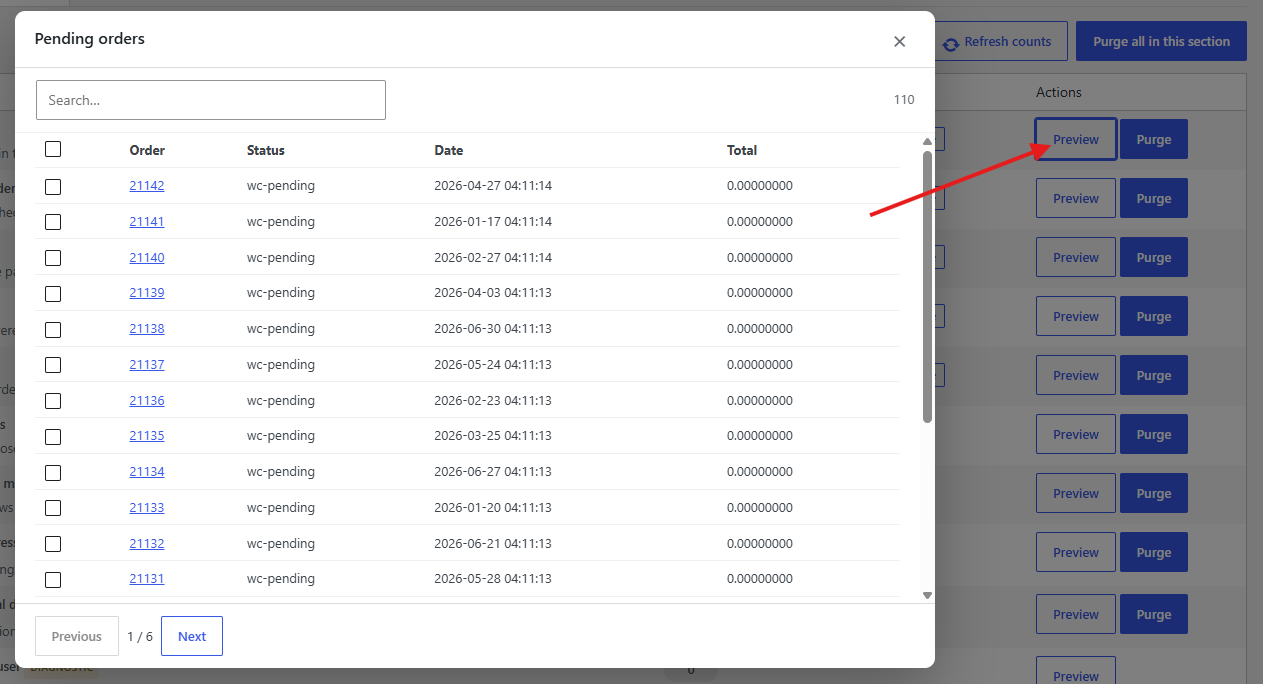
- One of the safest features of this plugin is Preview Before Delete.
- Before any cleanup is performed, you’ll see exactly which records match your selected criteria.
- This gives you complete confidence and prevents accidental data removal.
Retention Rules
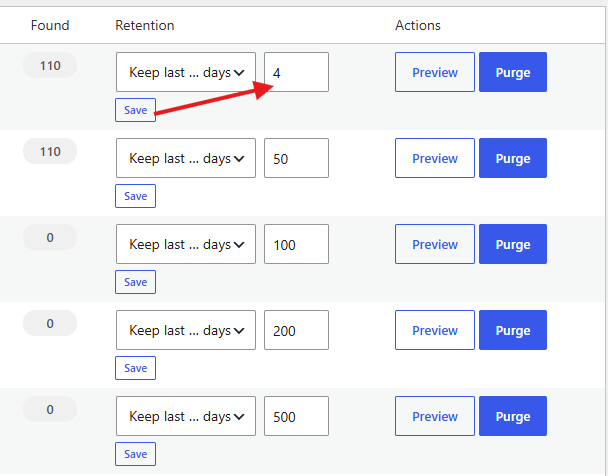
- Sometimes you don’t want to remove everything.
- That’s where Retention Rules come in.
- You can choose to keep the most recent number of days or preserve the latest number of records.
- For example, you may want to delete cancelled orders older than six months while keeping all recent activity.
- This provides maximum flexibility for every WooCommerce store.
Cleanup Methods
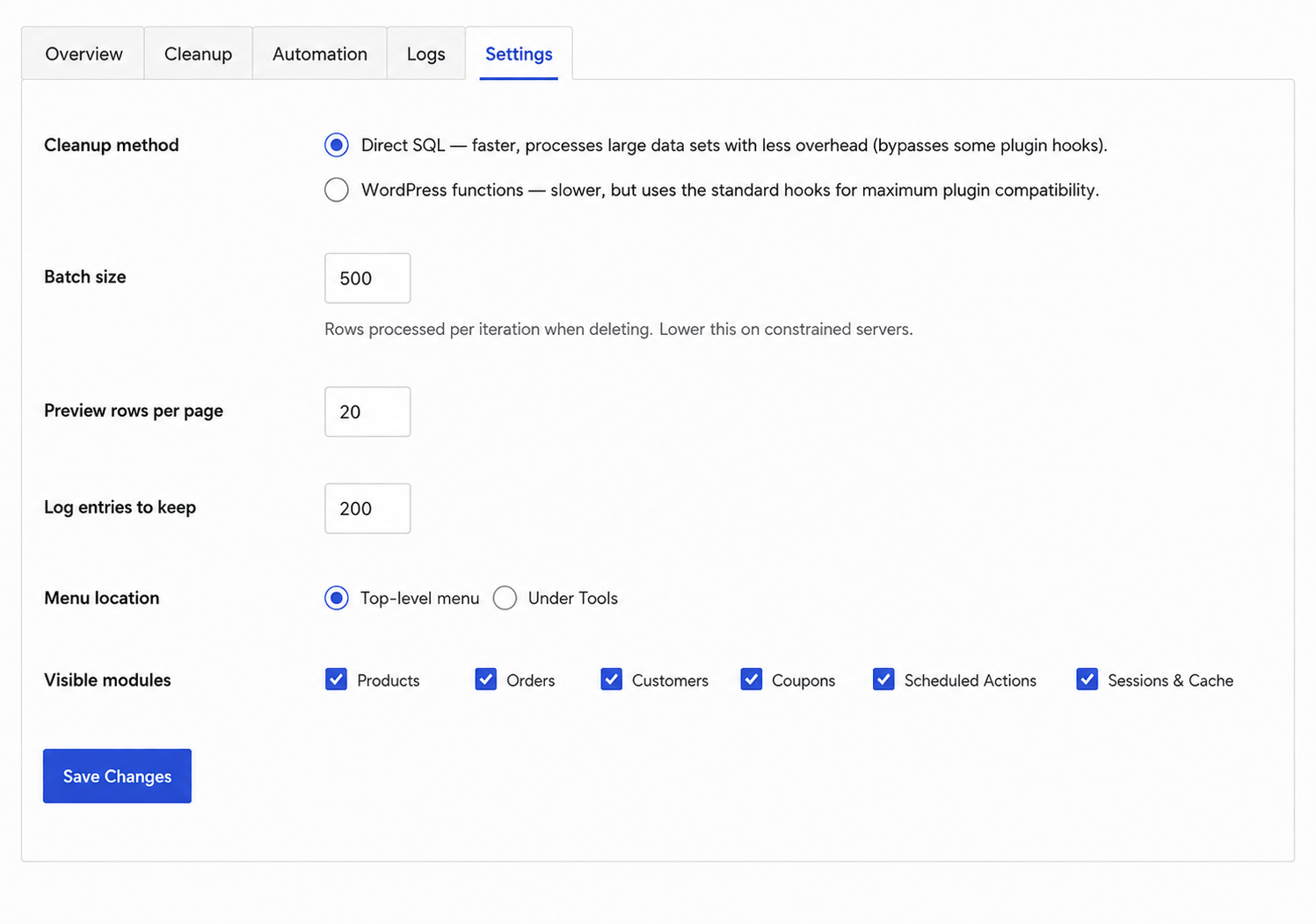
- Woo Optimise offers two cleanup methods.
- The first is Fast SQL Cleanup, which performs direct database queries for maximum speed.
- This is recommended for larger WooCommerce stores.
- The second is the WordPress Cleanup Method, which uses native WordPress functions and triggers plugin hooks for maximum compatibility with third-party plugins.
- You can choose whichever method best suits your website.
Automation
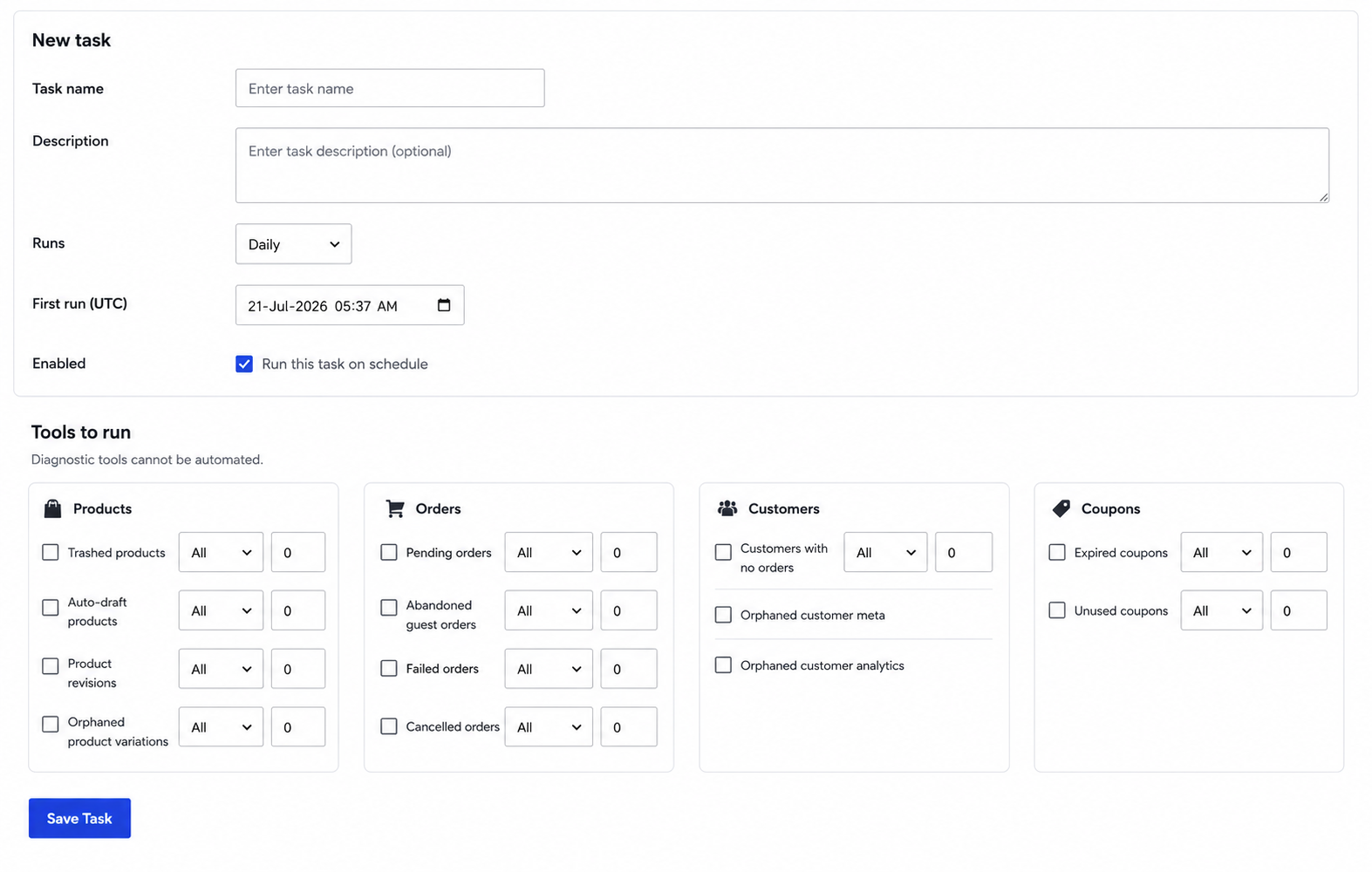
- Instead of running cleanups manually, you can automate the entire process.
- Simply create a new automation task, select the cleanup modules you want to include, configure your retention rules, choose a schedule, and save.
- The plugin supports hourly, twice daily, daily, weekly, and monthly schedules.
- Once configured, Woo Optimise automatically performs maintenance without any manual work.
Logs
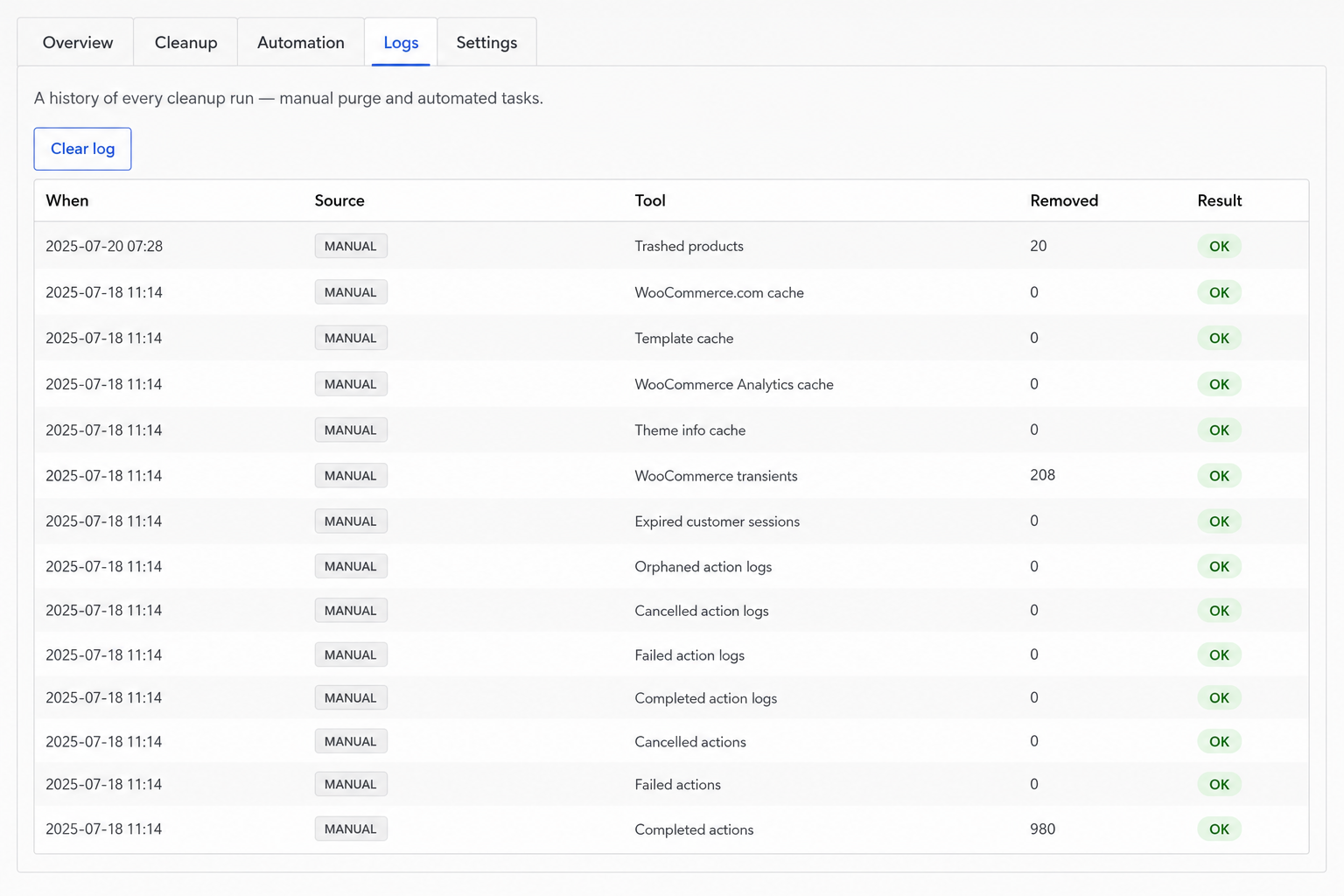
- Every cleanup operation is recorded in the Logs section.
- Here you can review when a cleanup was performed, whether it was manual or automated, the number of records removed, and the overall status.
- This gives you a complete history of all optimization activities.
Settings
- Finally, the Settings page allows you to customize how the plugin behaves.
- You can configure cleanup preferences, choose your preferred cleanup method, enable or disable modules, and manage default plugin settings.
- Everything is designed to give you complete control while keeping the interface simple and user-friendly.
Frequently Asked Questions
See the list below for our most frequently asked questions about our plugins.
If this doesn’t satisfy your requirement, please reach out to support team.
Q: What does Woo Optimise for WooCommerce do?
A: Woo Optimise for WooCommerce helps clean and optimize your WooCommerce database by removing unnecessary data such as trashed products, expired sessions, orphaned records, scheduled actions, old orders, coupons, and other unused WooCommerce data. This improves your store’s performance and keeps your database organized.
Q: Is it safe to delete data using this plugin?
A: Yes. The plugin includes a Preview Before Delete feature that lets you review all matching records before any cleanup is performed. However, we always recommend creating a full database backup before running large cleanups.
Q: What is the "Preview Before Delete" feature?
A: This feature displays all records that match your selected cleanup criteria before anything is removed. You can review the data, verify what will be deleted, and proceed with confidence.
Q: What are Retention Rules?
A: Retention Rules allow you to preserve important data while cleaning older records. You can choose to:
- Keep the last X days of data.
- Keep the latest X records.
This helps prevent accidental removal of recent orders, products, or customer information.
Q: Can I schedule automatic cleanups?
A: Yes. The plugin includes an Automation feature that allows you to create scheduled cleanup tasks. You can run cleanups hourly, daily, weekly, or monthly without any manual intervention.
Q: Does the plugin support WooCommerce HPOS?
A: Yes. Woo Optimise for WooCommerce fully supports High-Performance Order Storage (HPOS). The plugin automatically detects whether HPOS is enabled and cleans the appropriate WooCommerce order tables.
Q: What's the difference between Fast SQL and WordPress cleanup methods?
A: The plugin offers two cleanup methods:
- Fast SQL: Performs direct database queries for maximum speed and is recommended for large stores.
- WordPress Method: Uses native WordPress APIs, ensuring better compatibility with plugins that rely on WordPress hooks.
Q: Can I recover deleted data?
A: No. Once cleanup is completed, deleted records cannot be restored by the plugin. We strongly recommend creating a complete database backup before performing any cleanup operations.
Q: Will this plugin improve my website's performance?
A: Yes. Removing unnecessary WooCommerce data can reduce database size, improve database queries, decrease scheduled task overhead, and help your WooCommerce store perform more efficiently, especially on larger websites.
Q: Does the plugin keep a record of cleanup activities?
A:Yes. Every manual and automated cleanup is recorded in the Logs section. You can review when a cleanup was performed, which modules were executed, the number of records removed, and the cleanup status.