

Min and Max Order total, quantity for WooCommerce
Set Limits on Cart Total
Enhance Order Management
Control Product Quantity
14 Days Money Back Guarantee
99% Customer Satisfaction Rating
Support
- Enjoy 12 months of updates and dedicated support starting from your purchase date. Renewal is optional and can be cancelled anytime.
- Prices displayed on this site are in United States Dollars (USD).
- Trusted by 5000+ Websites
Rating
45 Reviews
1.0.1
Plugin Version
2000+
Downloads
February 26, 2026
Last Updated
HOW IT WORKS?
Min and Max Order total, quantity for WooCommerce Plugin for Seamless Work Process
Boost sales and control stock flow with Min & Max Order Quantity for WooCommerce – sell more, manage better
Empower your store with the ability to define minimum and maximum ranges for cart totals, ensuring control over transaction values. Set limits on product quantities too.
Improve order processing efficiency with precise control over order totals and quantities, providing a seamless shopping experience. WooCommerce Min Max Quantities helps streamline your store’s checkout process.
Manage inventory effectively by setting restrictions on product quantities per order, optimizing your sales strategy. WooCommerce Min Max Quantities ensures better control over your store’s operations.
Trusted by clients from 50+ Countries
Try with Confidence

100% Money-Back Guarantee
Our 30-day No-Risk Money Back Policy assures 100% money back.

99% Satisfaction Rating
We make every effort to make sure our customers are happy.

Average 5 star rating
Our plugins are highly regarded in WordPress forums and review platforms.
How Does The Plugin Work?
See How ‘Min and Max Order total, quantity for WooCommerce ‘ plugin function.
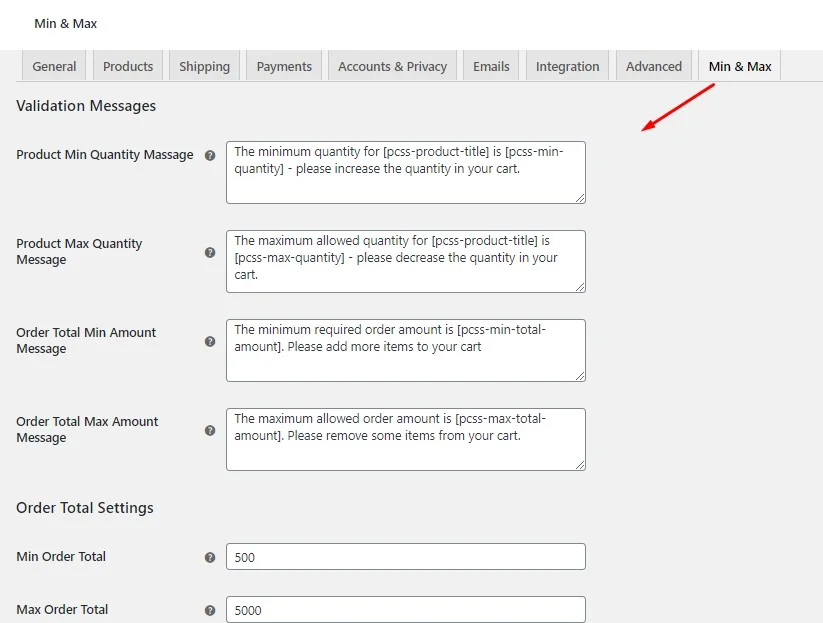
Admin WooCommerce Tab
After installing and activating this plugin, a ‘Min & Max’ tab will appear in the WooCommerce admin panel, located similar to the image on the right side. For instructions on customizing these settings within the ‘Min & Max’ tab, refer to the documentation provided for the Min and Max Order total, quantity for WooCommerce plugin.
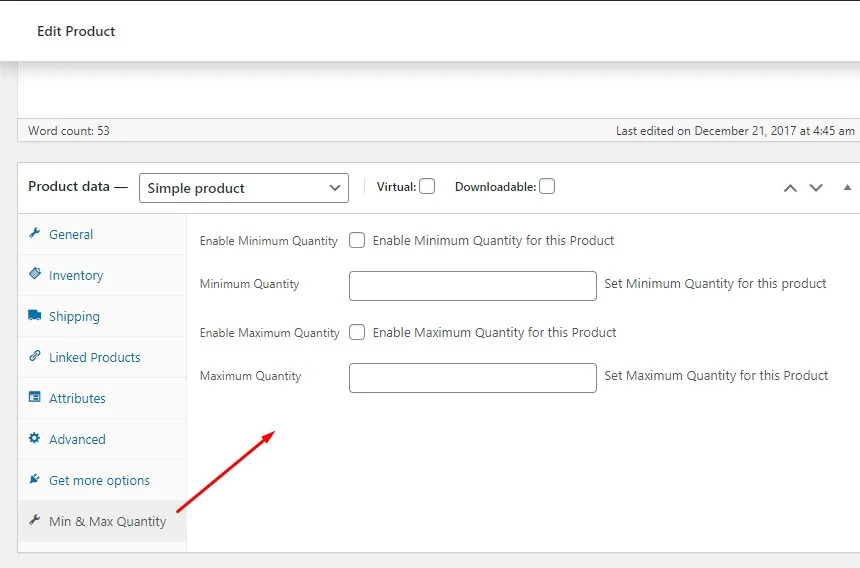
Admin Single Product Tab
After activating the plugin, a ‘Min & Max Quantity’ tab will appear on the admin products panel when editing a single product. This tab is located within the product data section, similar to the image on the left side. For detailed instructions on customizing these settings, please refer to the in and Max Order total, quantity for WooCommerce Documentation.
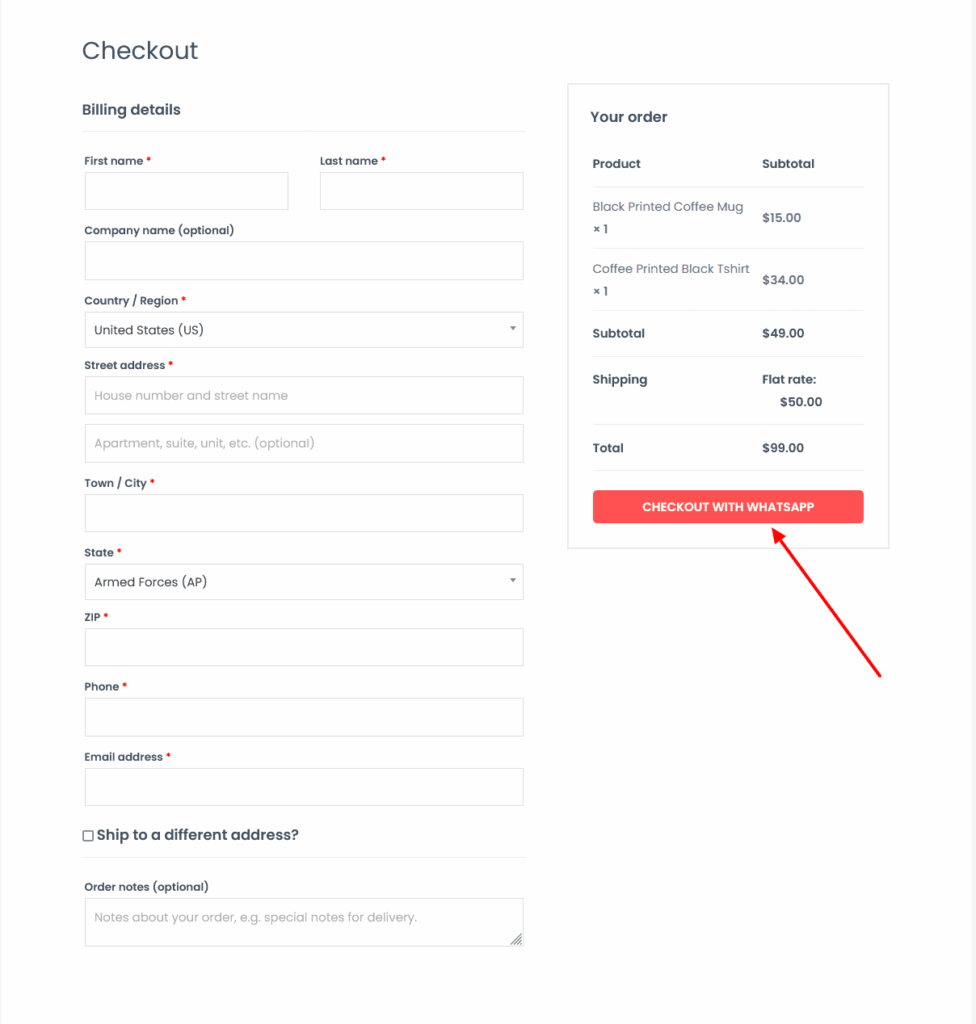
Checkout Page
Finally, after filling the Billing details, the customer will click on the Checkout With WhatsApp button. Clicking on this button will take the customer to the WhatsApp chat screen to the admin whatsapp number with all the products details in the cart along with the customer name, phone and billing details.
Click here for setting and how to install this plugin
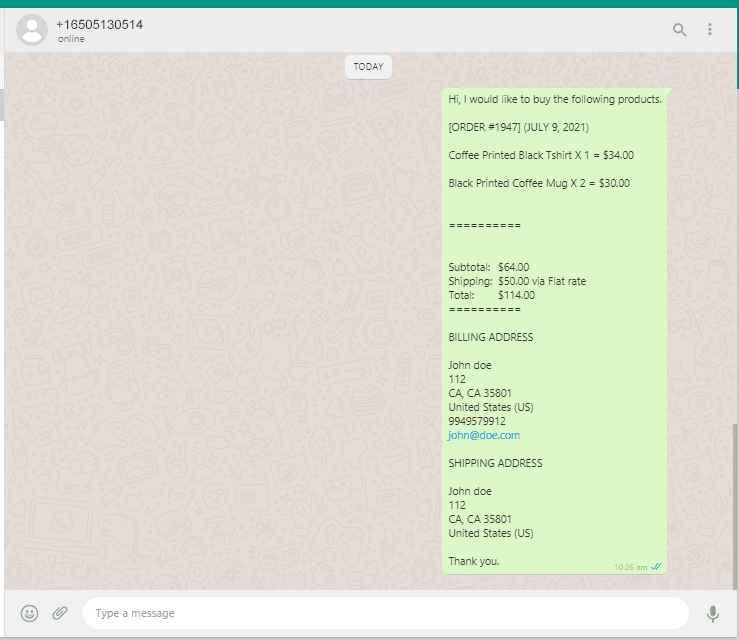
Finally, the order on WhatsApp for woocommerce
After the customer clicks on Checkout with WhatsApp / Buy on WhatsApp button, the client details and the card product data will be sent to store manager’s WhatsApp like the right side screenshot.
Turn every chat into a confirmed order – add WhatsApp Checkout to your store today!
Frequently Asked Questions
See the list below for our most frequently asked questions about our plugins.
If this doesn’t satisfy your requirement, please reach out to support team.
Q: What is Min and Max Order Total Quantity plugin for WooCommerce?
A: Min and Max Order Total Quantity for WooCommerce is a plugin that lets store owners set minimum and maximum limits on order quantity or cart total to control how customers place orders.
Q: Can I set a minimum order requirement in WooCommerce?
A: Yes, you can require customers to meet a minimum order quantity or cart total before they are allowed to proceed to checkout.
Q: Can I limit the maximum quantity per order?
A: Yes, the plugin allows you to define a maximum quantity limit to prevent customers from placing overly large orders.
Q: Can I control both minimum and maximum cart totals?
A: Yes, you can set both minimum and maximum cart value limits to ensure customers place orders within your desired range.
Q: Does the plugin validate rules at checkout?
Yes, if a customer’s cart does not meet the defined rules, the plugin will show a message and restrict checkout until the conditions are satisfied.
Q: Can I apply rules to the entire cart?
A: Yes, the plugin works at the cart level, allowing you to control total quantity and total order value across all products.
Q: How does this plugin help improve store performance?
A: By enforcing order limits, it helps increase average order value, reduce low-value orders, and maintain better inventory control.
Q: Can I display custom messages for order limits?
Yes, you can show clear messages to customers when minimum or maximum conditions are not met, improving user experience.
Q: Is this plugin useful for wholesale or bulk stores?
A: Yes, it is ideal for wholesale or bulk selling, where you need strict control over minimum and maximum purchase quantities.