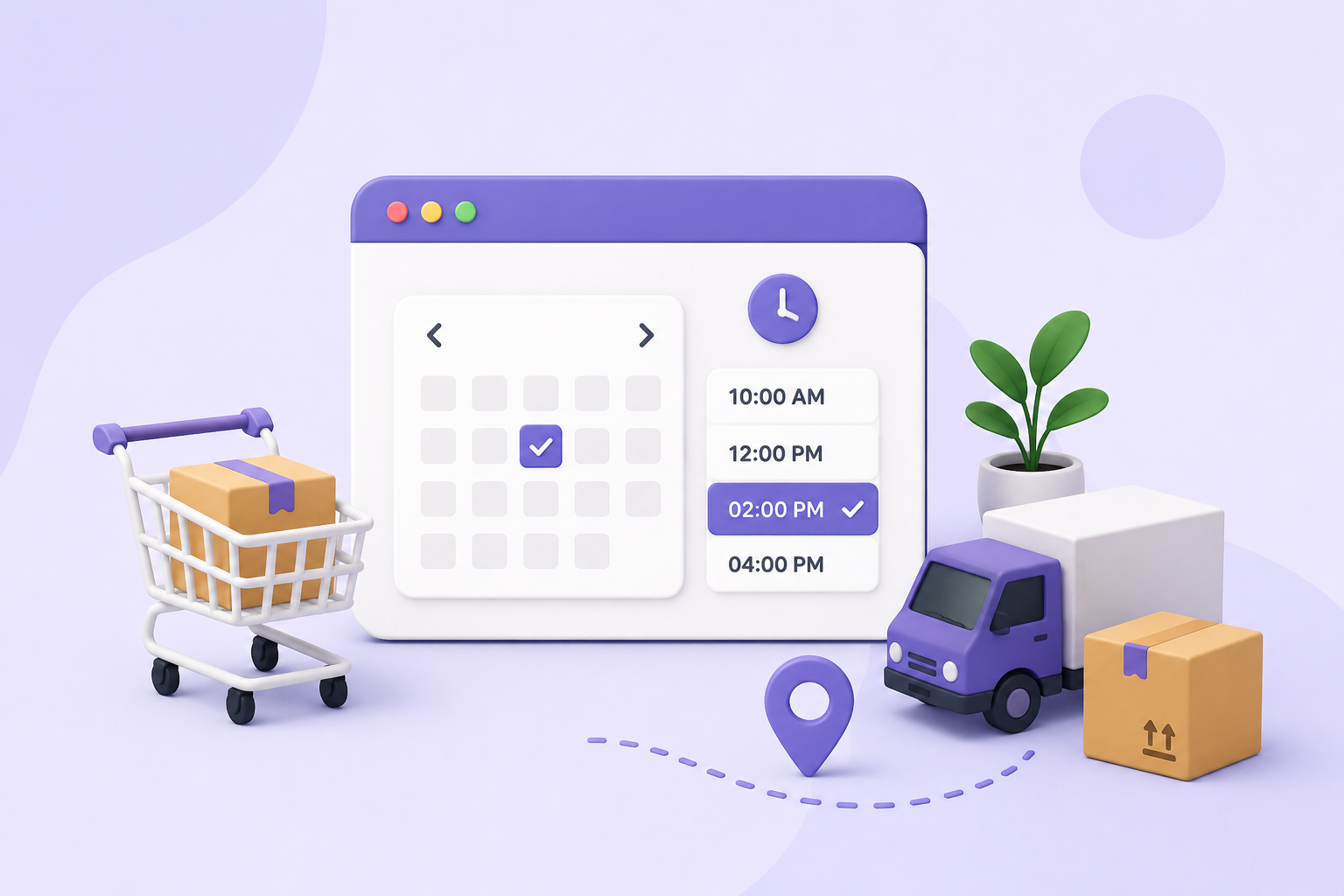
When customers place an order, one of the most common questions is:
“When will I receive my order?”
And if your store doesn’t provide a clear answer during checkout, it can lead to:
- Confusion
- Support queries
- Cart abandonment
By default, WooCommerce does not allow customers to select delivery date and time.
In this guide, you’ll learn how to add a delivery and pickup date-time picker in WooCommerce to improve customer experience and streamline order management.
Why Delivery Date & Time Selection Matters
Modern customers expect control.
They want to:
- Choose delivery dates
- Select preferred time slots
- Schedule pickups
Without this, they feel uncertain — and uncertain customers don’t convert.
Common Problems Without Scheduling
No Delivery Clarity
Customers don’t know when they’ll receive orders.
Missed Deliveries
Wrong timing → failed delivery attempts.
Increased Support Requests
Customers keep asking:
“When will my order arrive?”
Poor User Experience
No flexibility = frustration
Default WooCommerce Limitation
WooCommerce:
- Does not include delivery date selection
- Has no time slot feature
- Cannot manage pickup scheduling
You need a plugin for this functionality.
The Easy Solution: Delivery & Pickup Date Time for WooCommerce
Using:
Delivery & Pickup Date Time for WooCommerce
You can allow customers to:
- Select delivery date
- Choose time slots
- Schedule store pickup
Key Features
✅ Delivery Date Picker
Customers can select a preferred delivery date.
✅ Time Slot Selection
Offer predefined delivery windows like:
✅ Pickup Scheduling
Allow customers to choose:
Store pickup date & time
✅ Disable Unavailable Dates
Block:
- Holidays
- Weekends
- Non-delivery days
✅ Limit Daily Orders
Control number of deliveries per day.
Step-by-Step Setup
Step 1: Install the Plugin
Install Delivery & Pickup Date Time for WooCommerce.
Step 2: Enable Date Picker
Turn on delivery date selection in checkout.
Step 3: Configure Time Slots
Add time ranges based on your delivery capacity.
Step 4: Set Rules
- Disable holidays
- Limit daily orders
- Define pickup options
Step 5: Test Checkout
Ensure:
- Date picker works
- Time slots display correctly
- Orders capture scheduling info
Best Practices
1. Keep Time Slots Clear
Avoid too many options.
2. Add Buffer Time
Prevent same-day delivery issues.
3. Highlight Popular Slots
Guide customers to optimal times.
4. Sync with Operations
Align with delivery team capacity.
Real Use Cases
🍔 Food Delivery
Customers select delivery time.
🛒 Grocery Stores
Same-day or scheduled delivery.
🎁 Gift Shops
Schedule delivery for special occasions.
🏬 Local Stores
Offer pickup scheduling.
Benefits for Store Owners
📉 Reduce Failed Deliveries
😊 Improve Customer Satisfaction
📞 Reduce Support Queries
📦 Better Delivery Planning
Frequently asked questions
Q: Can WooCommerce add delivery date by default?
A: No, you need a plugin.
Q: Can customers choose time slots?
A: Yes, using this plugin.
Q: Can I disable specific dates?
A: Yes, you can block holidays or unavailable days.
Q: Is pickup scheduling supported?
A: Yes, customers can choose pickup time.
Q: Does this reduce delivery issues?
A: Yes, it improves planning and reduces failed deliveries.