

Smart Addresses for WooCommerce
Enable customers to save multiple addresses and ship items to different locations in a single order. Simplify checkout, improve convenience, and support multi-destination deliveries with an easy-to-use smart address system built for WooCommerce stores.
Overview
Smart Addresses for WooCommerce allows customers to save and manage multiple billing and shipping addresses in their account.
It simplifies checkout by letting users quickly select saved addresses instead of entering details every time.
The plugin also supports multi-shipping, enabling customers to send products to different addresses in a single order.
This improves convenience, reduces checkout time, and enhances the overall shopping experience.
Key Features
- Multiple Address Management
Customers can save and manage multiple billing and shipping addresses. - Quick Address Selection
Easily choose saved addresses during checkout. - Multi-Shipping Support
Ship different products to different addresses in one order. - Editable Address Book
Add, edit, or delete addresses from My Account page. - Faster Checkout Experience
Reduces manual input and speeds up the purchase process. - Customizable UI Settings
Control headings, buttons, and layout for address sections.
Installation
- Download the extension from your WooCommerce dashboard.
- Go to Plugins > Add New > Upload and select the ZIP file you just downloaded.
- Click Install Now, and then Activate.
How It Works ?
- Customer logs into their account.
- Adds multiple addresses in the My Account → Addresses section.
- During checkout, selects a saved billing or shipping address.
- If enabled, assigns different products to different addresses.
- Completes checkout quickly without re-entering details.
Backend Settings
Custom Saved Address:
General Settings :
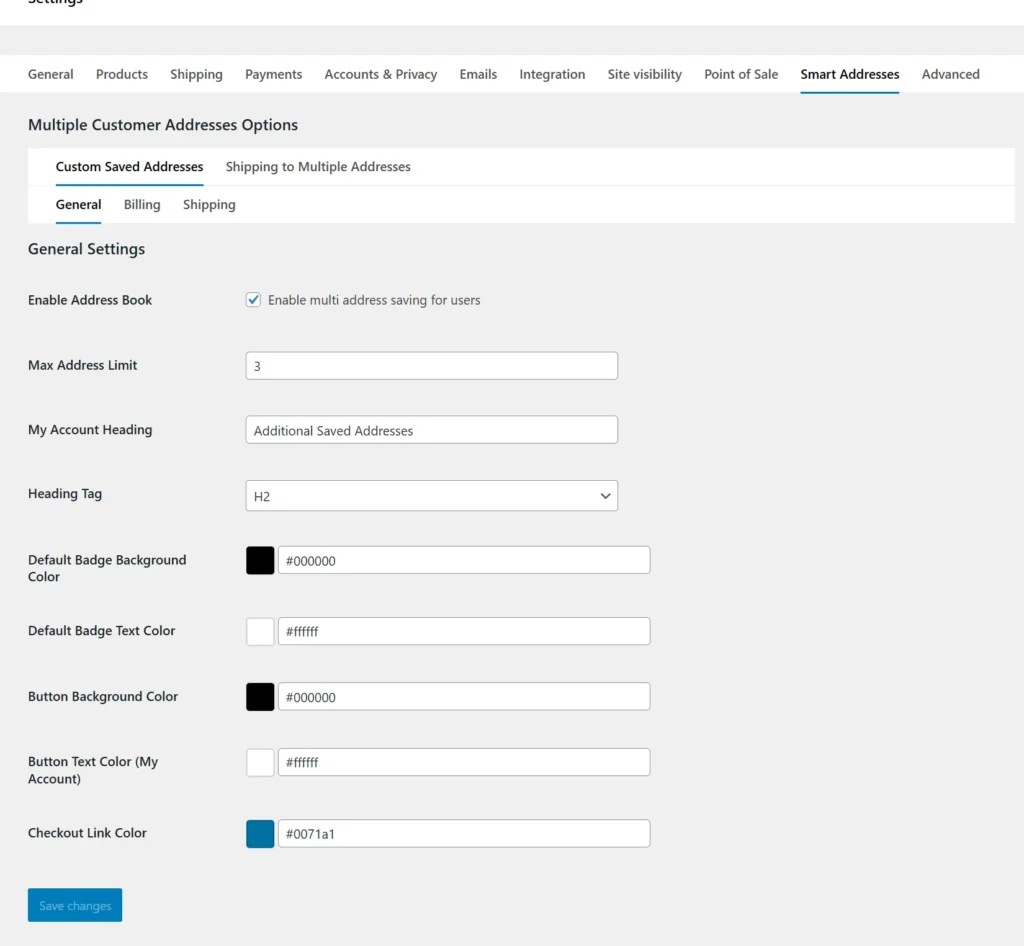
The General Settings allow you to enable the address book feature so customers can save multiple addresses in their account. You can define the maximum number of addresses a user is allowed to store. Additionally, you can customize headings, colors, and button styles to match your store design and improve the frontend experience.
Billing Settings:
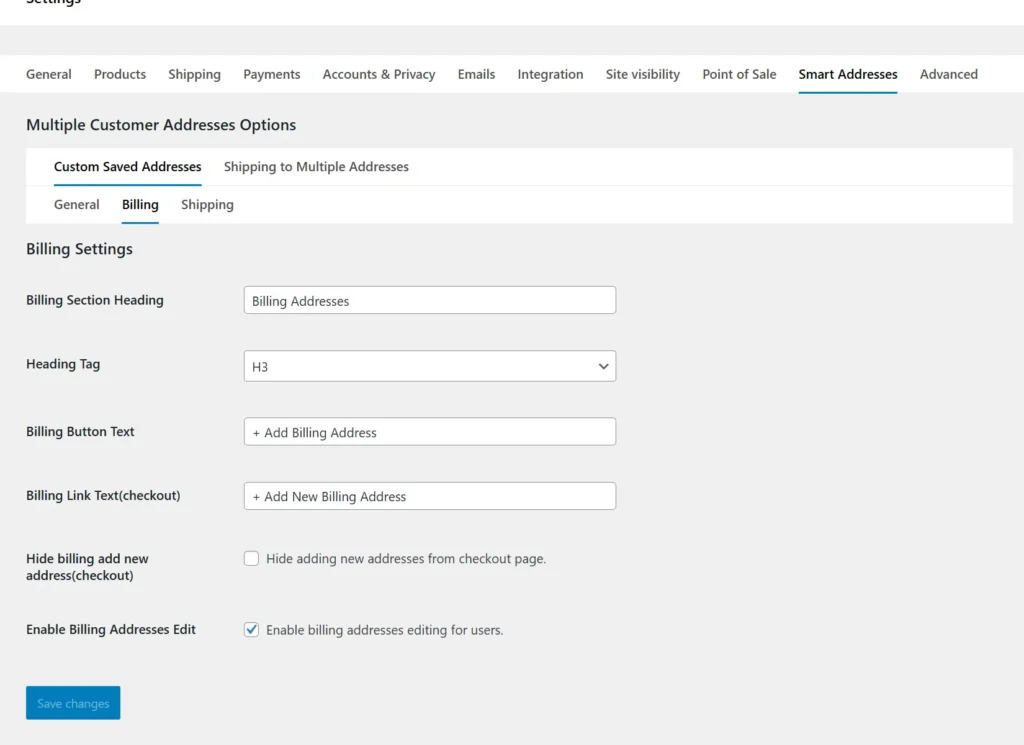
The Billing Settings let you customize how billing addresses are displayed to customers. You can set custom headings, button text, and checkout links for adding new billing addresses. It also provides options to allow or restrict users from editing or adding billing addresses during checkout.
Shipping Settings
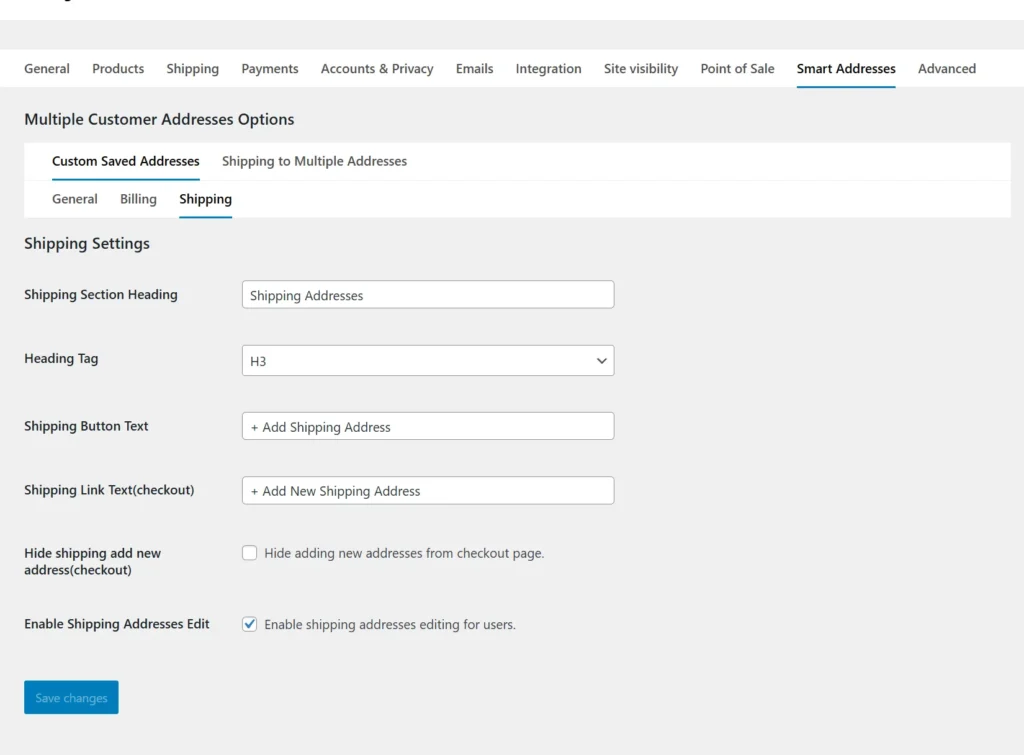
The Shipping Settings help you manage how shipping addresses appear on your store. You can customize section headings, button labels, and layout behavior for adding new shipping addresses. It also allows you to control whether customers can edit or add new shipping addresses during checkout.
Shipping to Multiple Addresses :
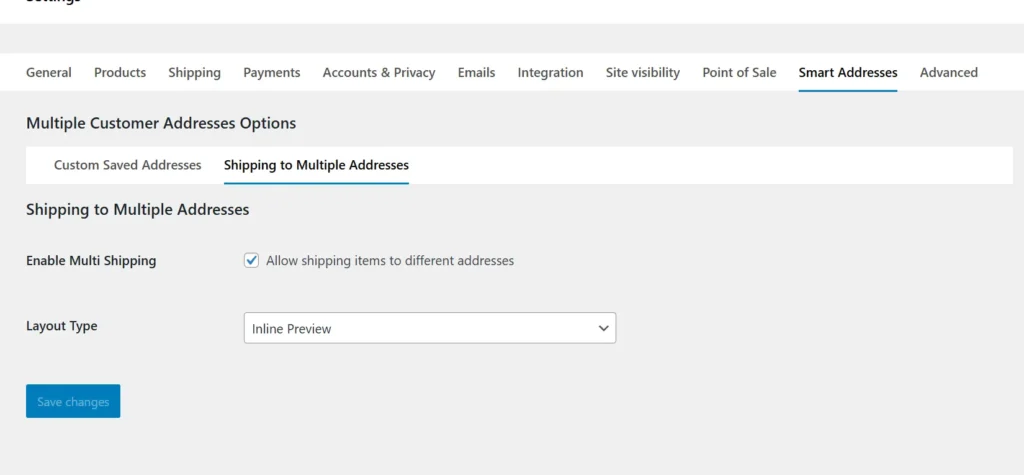
This feature enables customers to ship different products to multiple addresses within a single order. You can activate multi-shipping and choose a layout style such as inline preview for a smoother user experience. It is especially useful for gift orders or customers sending items to multiple locations.
Frontend Workflow
Address Page:
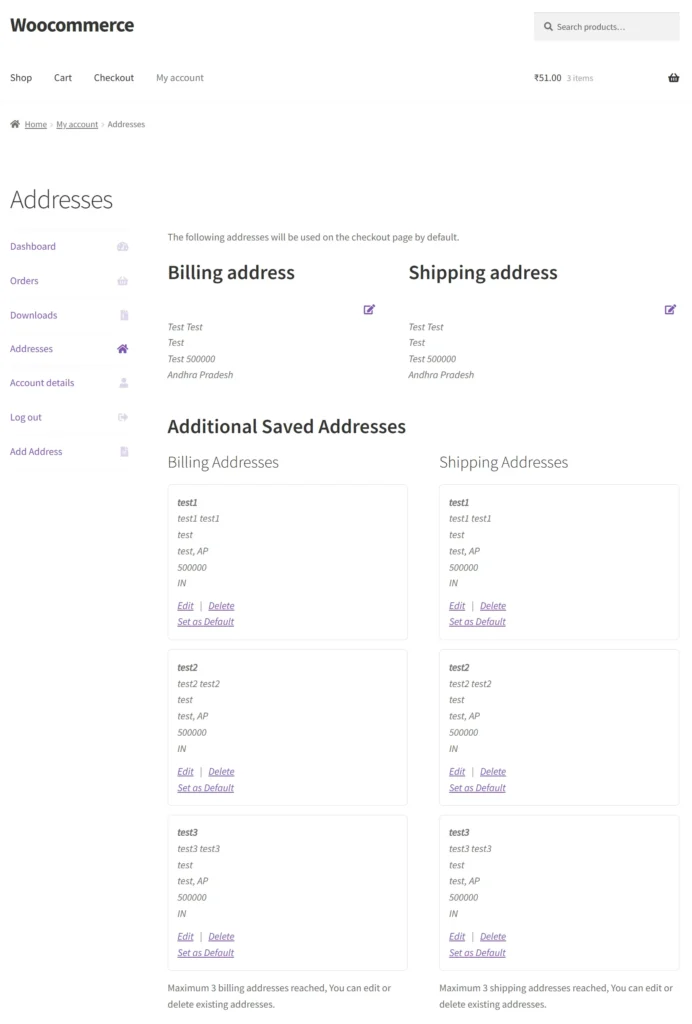
The Addresses section in My Account allows users to manage their billing and shipping details easily. Customers can save multiple addresses, edit or delete them, and set a default address for faster checkout. Additional saved addresses are neatly organized, making it simple to reuse them anytime. This feature provides flexibility and saves time for returning customers during future purchases.
Checkout page:
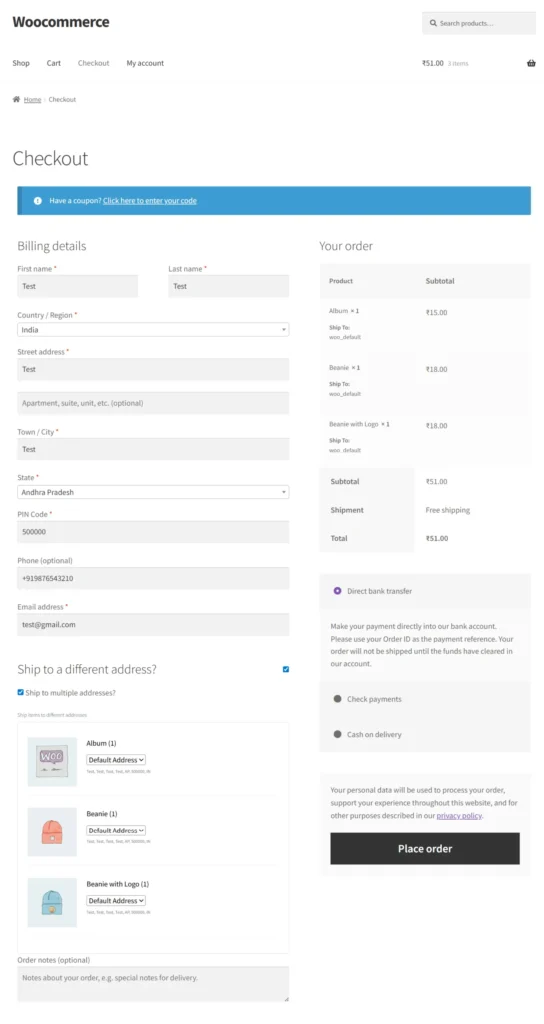
The checkout page provides a seamless experience where customers can enter billing details and review their order before placing it. With Smart Addresses enabled, users can choose different shipping addresses for each product directly during checkout. The “Ship to multiple addresses” option allows greater flexibility, especially for sending items to different locations. This improves user convenience and enhances the overall shopping experience.
Frequently Asked Questions
See the list below for our most frequently asked questions about our plugins.
If this doesn’t satisfy your requirement, please reach out to support team.
Q: What is Smart Addresses plugin for WooCommerce?
A: Smart Addresses for WooCommerce is a plugin that allows customers to save and manage multiple billing and shipping addresses, improving checkout speed and user experience.
Q: Can customers add multiple billing and shipping addresses?
A: Yes, customers can add, edit, and delete multiple billing and shipping addresses directly from their account dashboard.
Q: Where does the Smart Addresses feature appear on the frontend?
The Smart Addresses feature is available on the My Account page and Checkout page, where users can manage and select their saved addresses.
Q: Can users select saved addresses during checkout?
A: Yes, customers can choose from their saved addresses during checkout instead of entering address details every time.
Q: Can customers add a new address directly from checkout?
A: Yes, users can add a new address on the checkout page without leaving the process, ensuring a smooth shopping experience.
Q: Does this plugin reduce checkout time?
A: Yes, by allowing customers to reuse saved addresses, it significantly reduces checkout time and improves conversion rates.
Q: Can customers edit or delete saved addresses?
A: Yes, customers have full control to edit or delete their saved addresses anytime from the My Account section.
Q: Why should I use Smart Addresses for WooCommerce?
A: It enhances user experience, simplifies address management, speeds up checkout, and helps reduce cart abandonment.
Q: Do I need technical or coding knowledge to use this plugin?
A: No, the plugin is easy to install and manage directly from the WooCommerce dashboard without coding.